> For the complete documentation index, see [llms.txt](https://integrations.impact.com/llms.txt). Markdown versions of documentation pages are available by appending `.md` to page URLs; this page is available as [Markdown](https://integrations.impact.com/integration-guides/end-to-end-tests.md).
# End-to-End Tests
### Test new event types
Once you have successfully integrated a new event type, it is important to perform end-to-end tests to confirm that conversions are being reported to impact.com correctly.
We recommend first testing in your staging or QA environments, then once you are ready, impact.com requires that you perform at least one end-to-end test of each new event type in your production environment. This production end-to-end test should be viewed as a final validation ahead of the launch of a new event type.
If you are working with the impact.com onboarding team, you will receive a *Technical Implementation Plan* with guidelines specific to your implementation. Otherwise, impact.com's integrations portal provides guidance for many common integration methods.
Note: If you're using an e-Commerce plugin like WooCommerce, Shopify, or any of the other supported plugins, be sure to complete any necessary payments on your store's backend so that the test action can be marked as completed. impact.com will only receive conversion data once the transaction is successful.
#### Recommended browser settings
1. Clear your browser's cache and cookies before each test and ensure that ad-blocking browser extensions are disabled.
2. You can run the test in your browser's private mode, incognito mode, or guest mode:
3. Disable 3rd party cookies:
4. Proceed to the next phase of the integration test.
### Run a test conversion
1. From the top navigation bar, select :circle-user: **\[User profile] → Settings**.
2. On the right, under *Tracking*, select [**Event Types**](https://app.impact.com/secure/advertiser/tracking-settings/actiontracker/view-actiontracker-flow.ihtml).
3. Hover your cursor over the event type you want to test, select  **\[More] → Test**.
4. Select the **Template Term**, **Ad** and optionally, change the **Landing Page URL**. All event type tests will use your program's default landing page unless otherwise specified.
5. Select **Start Test in New Window**. A new browser tab will open, which will immediately direct to the URL chosen in Step 4 above.
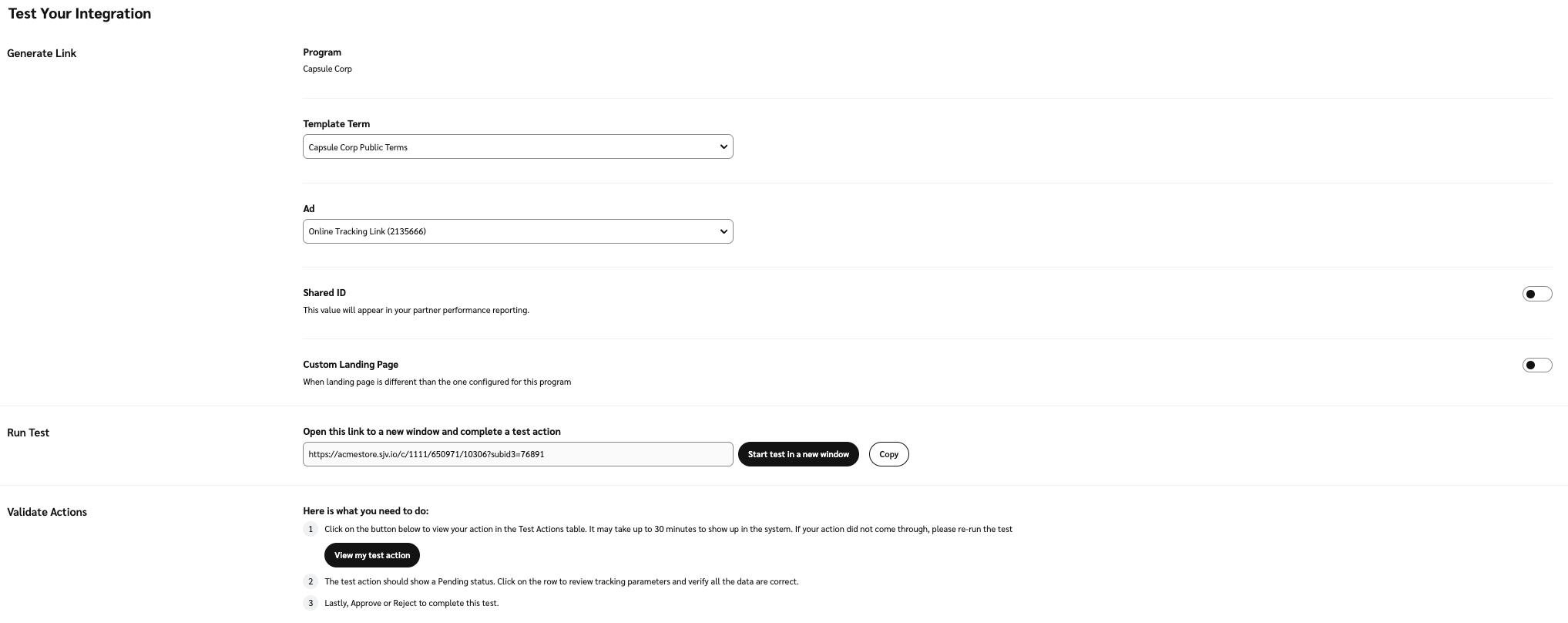 6. Complete a test conversion on your website, in the same browser and in the same session as the one you used to select **Start Test in New Window**. Record the Order ID and payload parameters (i.e., product details, discount, price, etc.):
* For *Sale* transactions, complete several tests with multiple SKUs, with a minimum quantity of 2 for each SKU, and some tests *with* a promo code and discount and some *without* a promo code and discount.
* For *Lead* transactions, complete several transactions to test variations in payload parameters such as promo codes, notes, or text fields, that are relevant to your expected payout conditions.
7. Proceed to review your test results in the next section.
### Review test results
1. Log in to your impact.com user account.
2. Retrieve the tracked conversion payload details by following these steps:
* From the left navigation bar, select  **Engage → Transactions →** [**Test Actions**](https://app.impact.com/secure/advertiser/engage/actions/tests/test-actions-flow.ihtml).
* Find your test conversion(s) based on the *Order Id* you recorded above.
* Hover your cursor over the transaction and select  **\[More] → See Details**.
3. Review the conversion payload details paying attention to revenue, discounts, product details, and any other element that will potentially affect partner payouts:
* If all the details are as expected, select **Approve**. Congratulations! Your event type is validated and successfully integrated.
* If any details are not correct, select **Reject**. If you reject the end-to-end test result, you will need to correct the integration and repeat the end-to-end process for that conversion event until you achieve a successful result.
4. It may take up to 30 minutes for a test transaction to surface on the *Test Actions* screen. If your test transaction does not appear on the test transaction screen, contact your Implementation Engineer, or [**support**](https://app.impact.com/support/portal.ihtml?createTicket=true).
---
# Agent Instructions
This documentation is published with GitBook. GitBook is the documentation platform designed so that both humans and AI agents can read, navigate, and reason over technical content effectively. Learn more at gitbook.com.
## Querying This Documentation
If you need additional information that is not directly available in this page, you can query the documentation by asking a question.
Perform an HTTP GET request on the following URL with the `ask` and `goal` query parameters:
```
GET https://integrations.impact.com/integration-guides/end-to-end-tests.md?ask=&goal=
```
`ask` is the immediate question: it should be specific, self-contained, and written in natural language.
`goal` is what the user is ultimately trying to achieve, the reason they need the answer. Sharing it helps GitBook give you a better, more relevant answer. A goal is most helpful when it describes the outcome the user wants rather than restating the question. For example, with `ask=how do I create an API token`, a goal like `automate deployments from our CI pipeline` lets GitBook tailor the answer to that use case.
The response will contain a direct answer to the question and relevant excerpts and sources from the documentation.
Use this mechanism when the answer is not explicitly present in the current page, you need clarification or additional context, or you want to retrieve related documentation sections.
6. Complete a test conversion on your website, in the same browser and in the same session as the one you used to select **Start Test in New Window**. Record the Order ID and payload parameters (i.e., product details, discount, price, etc.):
* For *Sale* transactions, complete several tests with multiple SKUs, with a minimum quantity of 2 for each SKU, and some tests *with* a promo code and discount and some *without* a promo code and discount.
* For *Lead* transactions, complete several transactions to test variations in payload parameters such as promo codes, notes, or text fields, that are relevant to your expected payout conditions.
7. Proceed to review your test results in the next section.
### Review test results
1. Log in to your impact.com user account.
2. Retrieve the tracked conversion payload details by following these steps:
* From the left navigation bar, select  **Engage → Transactions →** [**Test Actions**](https://app.impact.com/secure/advertiser/engage/actions/tests/test-actions-flow.ihtml).
* Find your test conversion(s) based on the *Order Id* you recorded above.
* Hover your cursor over the transaction and select  **\[More] → See Details**.
3. Review the conversion payload details paying attention to revenue, discounts, product details, and any other element that will potentially affect partner payouts:
* If all the details are as expected, select **Approve**. Congratulations! Your event type is validated and successfully integrated.
* If any details are not correct, select **Reject**. If you reject the end-to-end test result, you will need to correct the integration and repeat the end-to-end process for that conversion event until you achieve a successful result.
4. It may take up to 30 minutes for a test transaction to surface on the *Test Actions* screen. If your test transaction does not appear on the test transaction screen, contact your Implementation Engineer, or [**support**](https://app.impact.com/support/portal.ihtml?createTicket=true).
---
# Agent Instructions
This documentation is published with GitBook. GitBook is the documentation platform designed so that both humans and AI agents can read, navigate, and reason over technical content effectively. Learn more at gitbook.com.
## Querying This Documentation
If you need additional information that is not directly available in this page, you can query the documentation by asking a question.
Perform an HTTP GET request on the following URL with the `ask` and `goal` query parameters:
```
GET https://integrations.impact.com/integration-guides/end-to-end-tests.md?ask=&goal=
```
`ask` is the immediate question: it should be specific, self-contained, and written in natural language.
`goal` is what the user is ultimately trying to achieve, the reason they need the answer. Sharing it helps GitBook give you a better, more relevant answer. A goal is most helpful when it describes the outcome the user wants rather than restating the question. For example, with `ask=how do I create an API token`, a goal like `automate deployments from our CI pipeline` lets GitBook tailor the answer to that use case.
The response will contain a direct answer to the question and relevant excerpts and sources from the documentation.
Use this mechanism when the answer is not explicitly present in the current page, you need clarification or additional context, or you want to retrieve related documentation sections.