> For the complete documentation index, see [llms.txt](https://integrations.impact.com/llms.txt). Markdown versions of documentation pages are available by appending `.md` to page URLs; this page is available as [Markdown](https://integrations.impact.com/integration-guides/for-brands/advocate/advocate-plugin-integration/klaviyo-for-advocate.md).
# Klaviyo for Advocate
impact.com's Klaviyo integration expands your ability to leverage Advocate program data in your marketing efforts. This integration supports bidirectional synchronization of data between your Advocate program and Klaviyo, empowering you to deliver targeted, personalized outreach at scale.
{% hint style="success" %}
**Note:** This integration supports both Shopify and non-Shopify customers and can be accessed via Klaviyo’s integration marketplace.
{% endhint %}
## Why it's useful
Advocate participant data, including names, referral activity, and reward information, is automatically synced with Klaviyo. Once synced, you can use this data to personalize email communication and build audience segments for referral engagement.
The Advocate + Klaviyo integration provides two main capabilities:
#### Participant data syncing
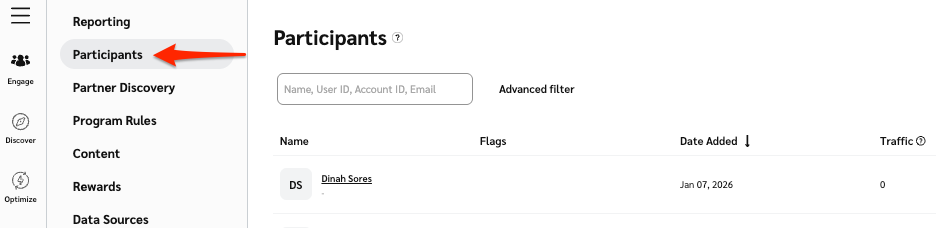
Your Advocate program's participant details, referral stats, and rewards are sent to Klaviyo automatically, so you can use these details for marketing decisions. Any new Klaviyo profiles also show up as Advocate program participants in impact.com.
#### Automatic participant segmentation
Once an Advocate participant has been synced and a Klaviyo profile exists for them, they are automatically added to advocate segments. You can then perform targeted outreach using email templates in the app.
| Segment | Includes |
| ---------------------- | -------------------------------------------------------------------------------------------- |
| **Advocates** | All synced participants with referral data. |
| **Active Advocates** | Participants who referred, were referred, or earned a reward in the last 30 days. |
| **Inactive Advocates** | Participants who have *not* referred, been referred, or earned a reward in the last 30 days. |
## Prerequisites
You will need to have:
* An existing Klaviyo store.
* An existing Advocate program.
* View [this help doc flow](https://help.impact.com/brand/what-would-you-like-to-learn-about/advocate-program/introduction-welcome-to-advocate) on our help center for help getting your new Advocate program off the ground.
{% stepper %}
{% step %}
### Install the app on your Klaviyo store
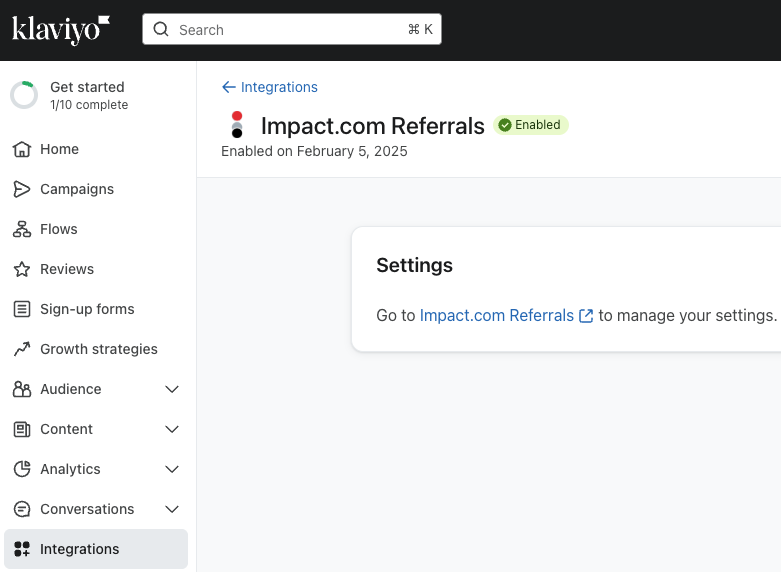
1. Install [impact.com's Klaviyo plugin](https://www.klaviyo.com/integrations/01J80FGJWXZK0NGXSY6JEYY917/details) from Klaviyo's app marketplace.
2. Log in to the app with your Klaviyo credentials.
3. Select the Klaviyo account you want to connect.
4. Review the access permissions that impact.com needs from your Klaviyo account, then select **Allow**.
{% endstep %}
{% step %}
### Configure integration settings
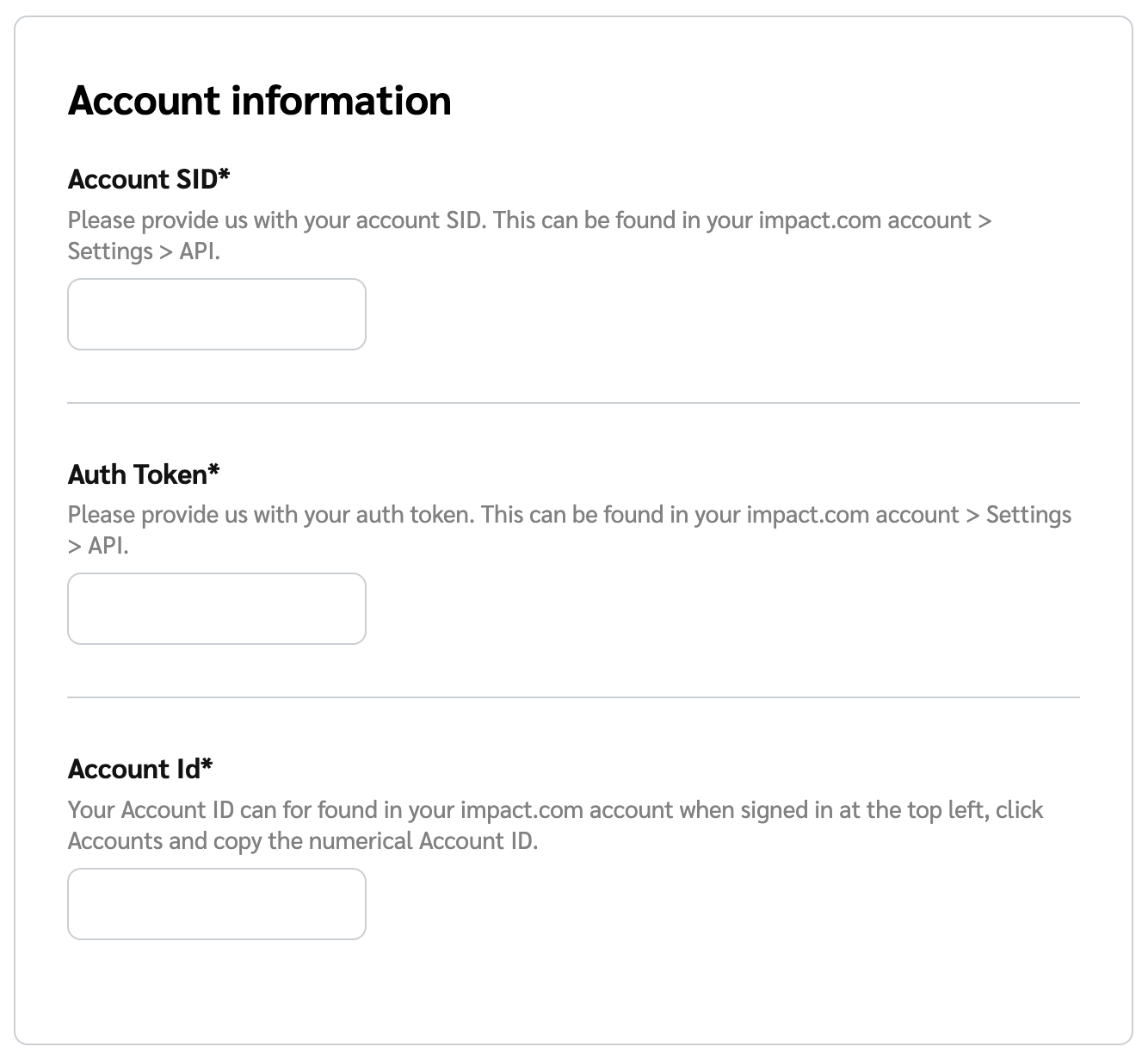
1. In the *Account information* section, fill in all the fields:
2. Select **Save** to save the setup.
3. See the *Field reference* below for details on each field or setting.
### Field reference
| Field or Setting | Description |
| ------------------------------------------------------ | ------------------------------------------------------------------------------------------------------------------------------------------------------------------------------------------------------------------------------------------------------------------------------------------------------------------------------------------------------------------------------------------------------------------------------------------------------------- |
| **Account SID\*** | To find your Account SID, in the impact.com platform, navigate to  **\[User profile] → Settings →** [**API**](https://app.impact.com/secure/advertiser/api/fr/api-access-tokens-ui.ihtml) and copy the full case-sensitive value. |
| **Auth Token\*** | To find your Auth Token, in the impact.com platform, navigate to  **\[User profile] → Settings →** [**API**](https://app.impact.com/secure/advertiser/api/fr/api-access-tokens-ui.ihtml) and copy the full case-sensitive value. |
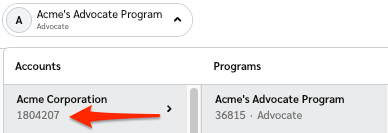
| **Account Id\*** | To find your Account Id, in the impact.com platform, select your account name in the upper-left corner and copy the number string below your account name in the left column.
|
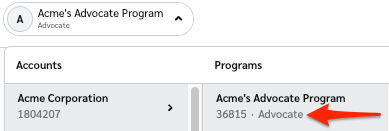
| **Program Id\*** | To find your Program Id, in the impact.com platform, select your account name in the upper-left corner and copy the number string below your program name in the right column.
|
| **Sync all Advocate participants to Klaviyo profiles** | Update existing Klaviyo profiles with corresponding participant data. If there are any new participants who don't have existing Klaviyo profiles, create Klaviyo profiles for them. |
| **Add Advocate segments to Klaviyo** | Add the segments *Advocate*, *Inactive Advocate*, and *Active Advocate* to your Klaviyo account. |
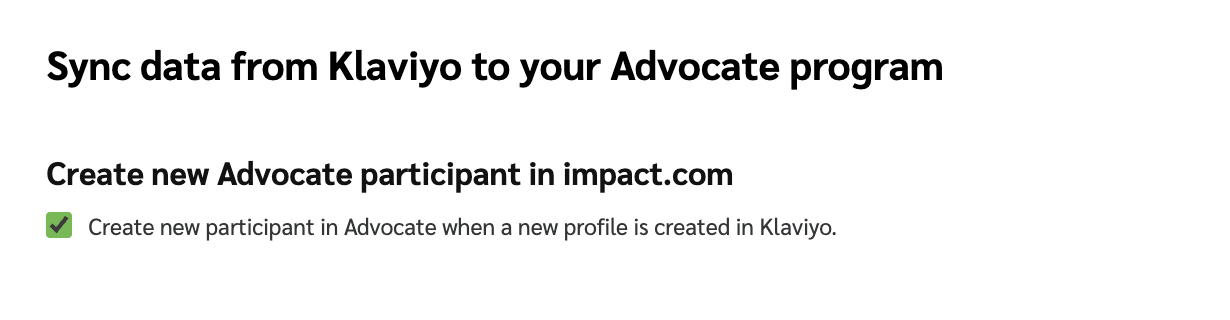
| **Create new Advocate participant in impact.com** | When a new profile is created in Klaviyo, create a new participant in your Advocate program. |
| {% endstep %} | |
{% step %}
### Test the data sync
#### Klaviyo steps
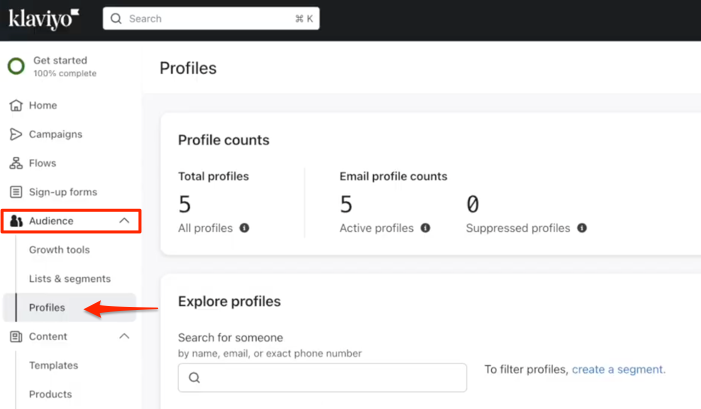
1. In Klaviyo, from the left navigation bar, select **Audience → Profiles**.
2. Under *Explore Profiles*, view your profiles or select a profile to open its details.
3. Review the data *Keys* as these should match the participant details in your Advocate program.