> For the complete documentation index, see [llms.txt](https://integrations.impact.com/llms.txt). Markdown versions of documentation pages are available by appending `.md` to page URLs; this page is available as [Markdown](https://integrations.impact.com/integration-guides/for-brands/advocate/end-to-end-testing-for-advocate.md).
# End-to-End Testing for Advocate
We recommend testing your Advocate program end-to-end to confirm that participants are being correctly registered in impact.com and rewarded for successful referrals.
The basic E2E testing steps are applicable to most Advocate implementations: create a customer advocate, refer a friend through the advocate, then confirm that the referral and reward were correctly tracked. If you have a more complex implementation, reach out to [support](https://app.impact.com/support/portal.ihtml?createTicket=true) for assistance.
{% hint style="warning" %}
**important:** If you're rewarding cash and you complete the tax interview and provide your banking details as part of testing, you will receive a reward and a processing fee for the reward will be applied.
{% endhint %}
## Prerequisites
Before beginning E2E testing, your Advocate program must be fully set up. Make sure that:
* The basic setup steps for your tracking integration—such as Shopify, Salesforce, HubSpot, or UTT—are complete.
* The conversion event you send to impact.com includes the `customerEmail` field.
* Program rules and rewards have been configured in your impact.com account.
* Program touchpoints—including widgets or microsites—have been added to your website or landing page (as required).
## End-to-End Test
{% stepper %}
{% step %}
### Create a test customer advocate
1. This process will depend on how you've implemented with impact.com.
2. Through the website referral widget, register using a unique email address that is not already registered in your program.
3. Copy and store the share link for the test customer advocate.
4. In your impact.com account, from the left navigation menu, select  **Engage → Participants**. Check that the customer advocate appears in the list.
{% endstep %}
{% step %}
### Start a new referral
We recommend completing this step in an incognito or private browser window. Existing cookies stored in your browser might alter your test results.
1. In an incognito or private browser window, load the share link you copied from the test customer advocate.
2. Confirm that your landing page URL loads with the following referral URL parameters: `_saasquatch` and `rsCode`.
{% tabs %}
{% tab title="Example" %}
```
example.com/landing-page?utm_source=xxxx&utm_medium=xxxx&utm_campaign=saasquatch&rsCode=xxxxxx&rsShareMedium=xxxx&rsEngagementMedium=xxxx&_saasquatch=xxxxx
```
{% endtab %}
{% endtabs %}
3. In your impact.com account, check that the referred friend was registered correctly.
1. From the left navigation menu, select  **Engage → Participants**.
2. Confirm that the test referred friend appears in the list.
3. Select their name to open their participant profile.
4. In the *Referral Info* section at the top, confirm that the test customer advocate is listed in the *Referred By* field.
4. Optionally, if your program rules are set up to send an email to the customer advocate when a referred friend signs up, check that the email was received.
{% endstep %}
{% step %}
### Convert the referral
The process for converting the referral varies depending on your tracking integration with impact.com. If you don't see your integration in this list, reach out to your impact.com-assigned Implementation Engineer for help.
* **Shopify**: Complete a purchase.
* **HubSpot:** Change the referred friend's Deal stage to *Closed Won*.
* **Salesforce:** Convert the referred friend's *Lead* to an *Opportunity*. Then mark the *Opportunity* as *Closed Won*.
* **JavaScript UTT:** Complete a purchase or action that will trigger the `trackConversion` function.
{% endstep %}
{% step %}
### Confirm the conversion in impact.com
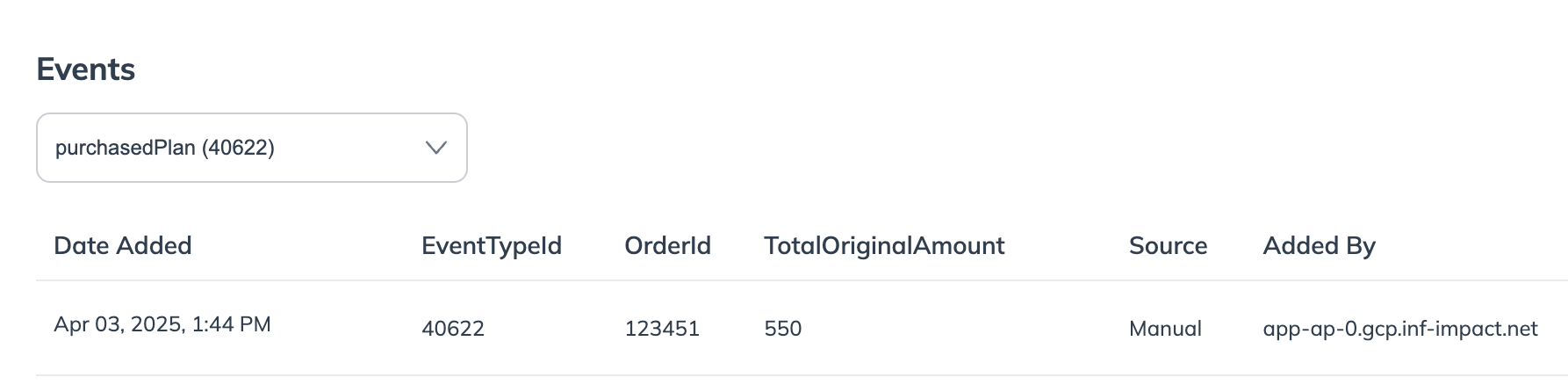
Confirm that the conversion event is logged for the referred user. Events typically take 5-10 minutes to process.
1. From the left navigation menu, select  **Engage → Participants**.
2. Select the referred friend's name from the list to open their profile.
3. In the *Events* section at the bottom, use the  **\[Drop-down list]** to select your conversion event. Make sure that the test conversion appears.
4. Confirm that the test customer advocate and test referred friend received any emails, in alignment with your program rules.
{% endstep %}
{% step %}
### Confirm that rewards were issued
Check that your program issued rewards for this conversion, as defined by your program rules.
1. From the left navigation menu, select  **Engage → Participants**.
2. Select the test customer advocate's name to open their participant profile.
3. In the *Rewards* section, make sure the customer advocate received their reward.
4. If your program rules also reward the referred friend, check their profile as well.
{% endstep %}
{% step %}
### Remove your test data in impact.com
Finally, we recommend removing the test data in impact.com.
1. Mark the event you sent to impact.com [as a test](https://help.impact.com/brand/what-would-you-like-to-learn-about/advocate-program/manage-advocate-participants/referrals-and-events/mark-an-event-as-a-test-for-advocate).
2. [Cancel the unredeemed reward](https://help.impact.com/brand/what-would-you-like-to-learn-about/advocate-program/advocate-rewards/manage-existing-rewards#cancel-an-unredeemed-reward).
3. [Delete the referral](https://help.impact.com/brand/what-would-you-like-to-learn-about/advocate-program/manage-advocate-participants/referrals-and-events/delete-a-referral) in the referral feed.
4. [Delete the test participant](https://help.impact.com/brand/what-would-you-like-to-learn-about/advocate-program/manage-advocate-participants/delete-participants-from-your-advocate-program).
{% endstep %}
{% endstepper %}
---
# Agent Instructions
This documentation is published with GitBook. GitBook is the documentation platform designed so that both humans and AI agents can read, navigate, and reason over technical content effectively. Learn more at gitbook.com.
## Querying This Documentation
If you need additional information that is not directly available in this page, you can query the documentation by asking a question.
Perform an HTTP GET request on the following URL with the `ask` and `goal` query parameters:
```
GET https://integrations.impact.com/integration-guides/for-brands/advocate/end-to-end-testing-for-advocate.md?ask=&goal=
```
`ask` is the immediate question: it should be specific, self-contained, and written in natural language.
`goal` is what the user is ultimately trying to achieve, the reason they need the answer. Sharing it helps GitBook give you a better, more relevant answer. A goal is most helpful when it describes the outcome the user wants rather than restating the question. For example, with `ask=how do I create an API token`, a goal like `automate deployments from our CI pipeline` lets GitBook tailor the answer to that use case.
The response will contain a direct answer to the question and relevant excerpts and sources from the documentation.
Use this mechanism when the answer is not explicitly present in the current page, you need clarification or additional context, or you want to retrieve related documentation sections.