# Copy of Zoho Commerce Integration
{% hint style="info" %}
**Integrating with Zoho Commerce is in closed beta.**
Our impact.com integration with Zoho Commerce is currently in closed beta. Should your experience not match the guide below, please reach out to your CSM (or [contact support](https://app.impact.com/support/portal.ihtml?createTicket=true)).
{% endhint %}
Zoho Commerce contains all the tools you need to build a website, accept orders, track inventory, process payments, manage shipping, market your brand, and analyze your data. The impact.com Zoho Commerce integration allows you to track your online sales and reward your partners for them.
#### Integration prerequisites
* Your e-commerce website must be powered by Zoho Commerce.
* You only have online sale events in scope for your impact.com program.
#### Integration limitations
* The integration does not support automated refunds.
### Setup instructions
{% stepper %}
{% step %}
### Login to the impact.com Integration Client
1. Proceed to the [impact.com Integration Client](https://saasler-zohocommerce-impact.herokuapp.com/).
2. You will be prompted to log into your Zoho Commerce account.
{% endstep %}
{% step %}
### Accept the permissions
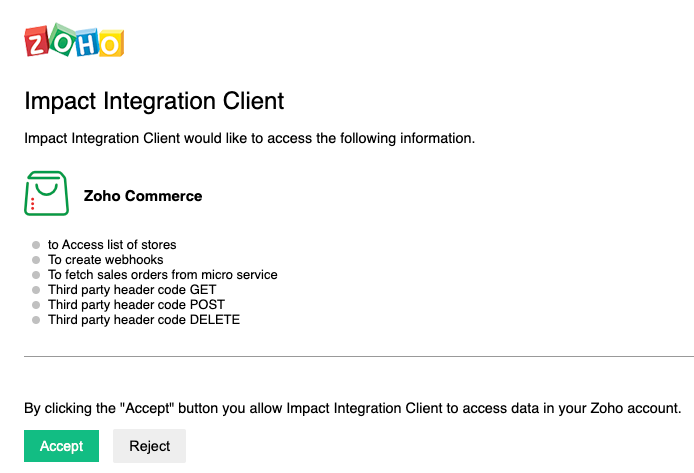
1. Select **Accept** to give the Integration Client access to the permissions it needs to connect to Zoho Commerce and manage tracking your orders.
{% endstep %}
{% step %}
### Add your impact.com credentials
{% hint style="success" %}
**Note:** The variables below require you to be logged in to impact.com in order for them to populate. Select the **Log In** button at the top-right of the screen if the variables in the tables below have not populated.
{% endhint %}
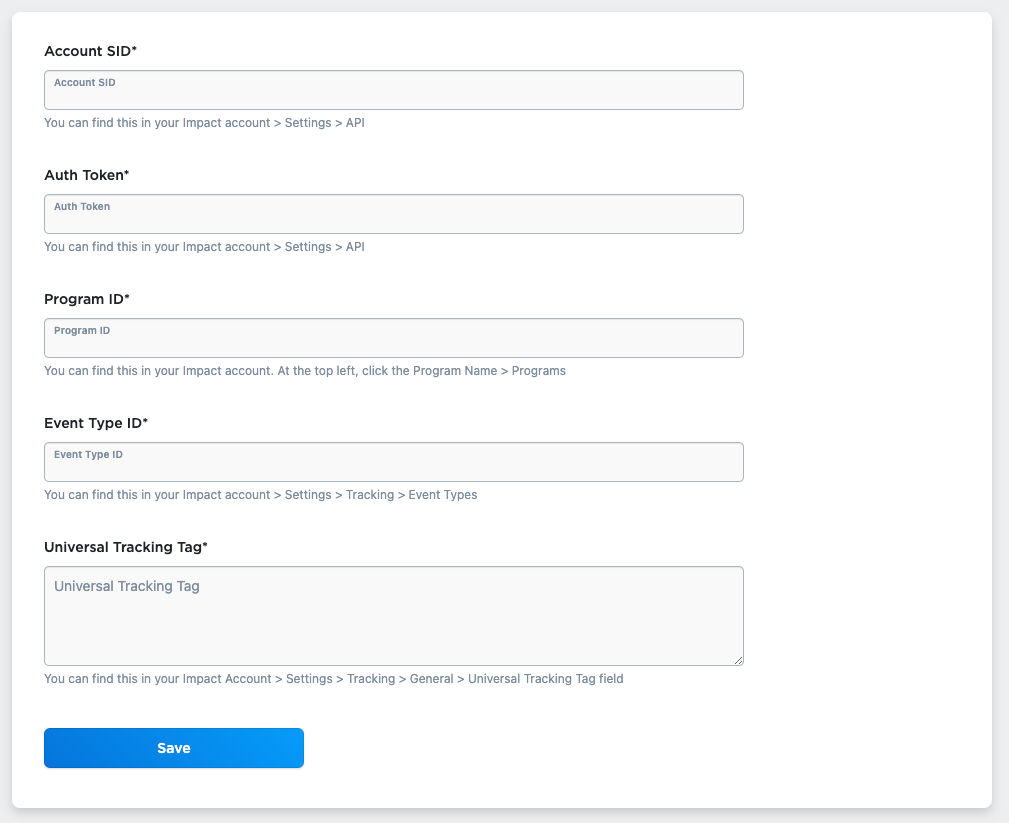
1. Fill in the relevant account data on the *Settings* screen. Refer to the *account data* table below to easily retrieve this information.
**Your impact.com account values appear in the table below. Use these exactly as shown:**
| Account Data | Description |
| ------------------------ | -------------------------------------------------------------------------------------------------------------------------------------------------------------------------------------------------------------------------------------------------- |
| `Impact Account SID` | In the impact.com platform, from the top navigation bar, select  **\[User profile] → Settings →** [**API**](https://app.impact.com/secure/advertiser/api/fr/api-access-tokens-ui.ihtml) and copy your Account SID. |
| `Auth Token` | In the impact.com platform, from the top navigation bar, select  **\[User profile] → Settings →** [**API**](https://app.impact.com/secure/advertiser/api/fr/api-access-tokens-ui.ihtml) and copy your Auth Token. |
| `Program ID` | visitor.isSet ? visitor.claims.programId : "Log in to your impact.com account to view the value." |
| `Event Type ID` | visitor.isSet ? visitor.claims.singleSaleEventId : "Log in to your impact.com account to view the value." |
| `Universal Tracking Tag` | visitor.isSet ? visitor.claims.utt : "Log in to your impact.com account to view the value." |
2. Select **Save**. You'll receive confirmation that impact.com has been installed.
{% endstep %}
{% endstepper %}
### End-to-End Testing
Once the impact.com app is fully installed, you can begin end-to-end testing to ensure everything is working properly. Learn how to proceed with [End-to-End Testing](/integration-guides/end-to-end-tests.md).
---
# Agent Instructions: Querying This Documentation
If you need additional information that is not directly available in this page, you can query the documentation dynamically by asking a question.
Perform an HTTP GET request on the current page URL with the `ask` query parameter:
```
GET https://integrations.impact.com/integration-guides/for-brands/checklist-plugin-integrations/expressions/copy-of-zoho-commerce-integration.md?ask=
```
The question should be specific, self-contained, and written in natural language.
The response will contain a direct answer to the question and relevant excerpts and sources from the documentation.
Use this mechanism when the answer is not explicitly present in the current page, you need clarification or additional context, or you want to retrieve related documentation sections.