> For the complete documentation index, see [llms.txt](https://integrations.impact.com/llms.txt). Markdown versions of documentation pages are available by appending `.md` to page URLs; this page is available as [Markdown](https://integrations.impact.com/integration-guides/for-brands/checklist-plugin-integrations/zoho-commerce-integration.md).
# Zoho Commerce Integration
{% hint style="info" %}
**Integrating with Zoho Commerce is in closed beta.**
Our impact.com integration with Zoho Commerce is currently in closed beta. Should your experience not match the guide below, please reach out to your CSM (or [contact support](https://app.impact.com/support/portal.ihtml?createTicket=true)).
{% endhint %}
Zoho Commerce contains all the tools you need to build a website, accept orders, track inventory, process payments, manage shipping, market your brand, and analyze your data. The impact.com Zoho Commerce integration allows you to track your online sales and reward your partners for them.
#### Integration prerequisites
* Your e-commerce website must be powered by Zoho Commerce.
* You only have online sale events in scope for your impact.com program.
#### Integration limitations
* The integration does not support automated refunds.
### Setup instructions
{% stepper %}
{% step %}
### Login to the impact.com Integration Client
1. Proceed to the [impact.com Integration Client](https://saasler-zohocommerce-impact.herokuapp.com/).
2. You will be prompted to log into your Zoho Commerce account.
{% endstep %}
{% step %}
### Accept the permissions
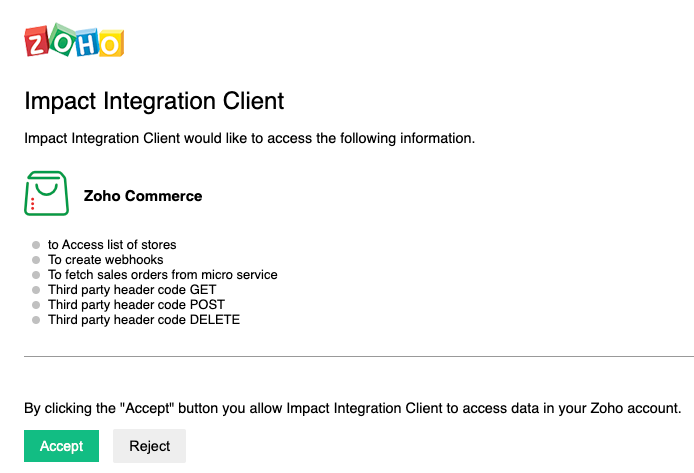
1. Select **Accept** to give the Integration Client access to the permissions it needs to connect to Zoho Commerce and manage tracking your orders.
{% endstep %}
{% step %}
### Add your impact.com credentials
{% hint style="success" %}
**Note:** The variables below require you to be logged in to impact.com in order for them to populate. Select the **Log In** button at the top-right of the screen if the variables in the tables below have not populated.
{% endhint %}
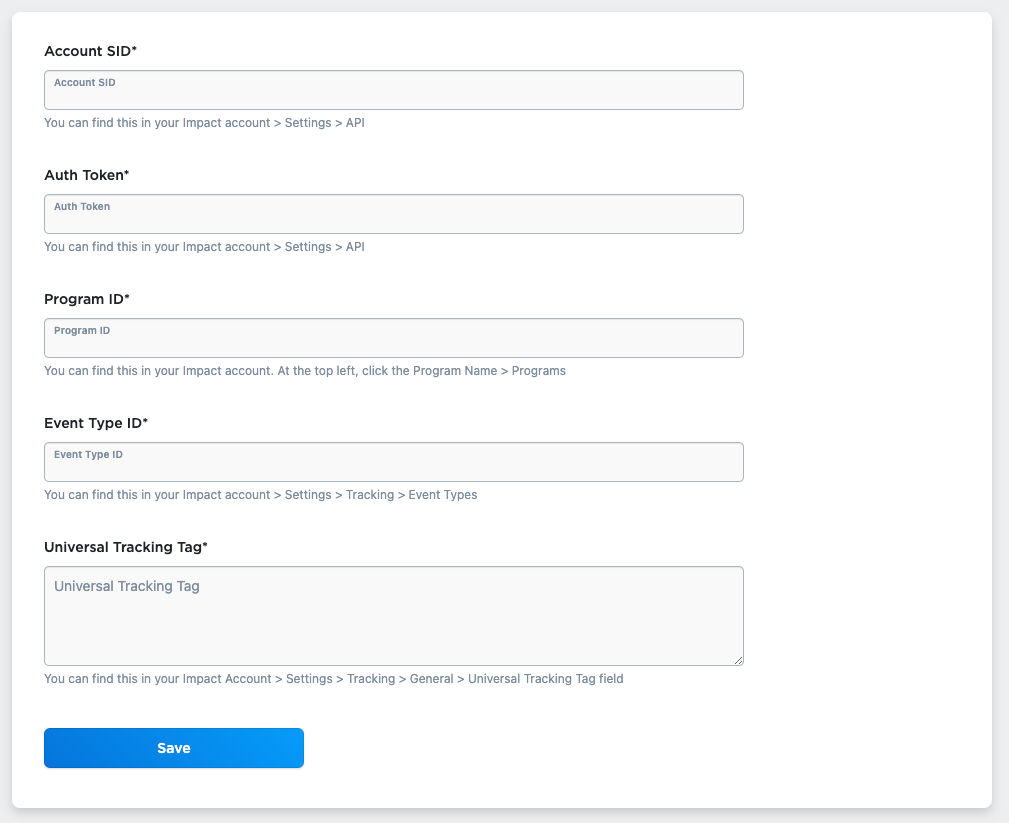
1. Fill in the relevant account data on the *Settings* screen. Refer to the *account data* table below to easily retrieve this information.
**Your impact.com account values appear in the table below. Use these exactly as shown:**
| Account Data | Description |
| ------------------------ | --------------------------------------------------------------------------------------------------------------------------------------------------------------------------------------------------------------------------------------------------------------------------------------------------------------------------------------------------------------------------------------------------------------------------------------------------------------------------------------------------------------------------- |
| `Impact Account SID` | In the impact.com platform, from the top navigation bar, select  **\[User profile] → Settings →** [**API**](https://app.impact.com/secure/advertiser/api/fr/api-access-tokens-ui.ihtml) and copy your Account SID. |
| `Auth Token` | In the impact.com platform, from the top navigation bar, select  **\[User profile] → Settings →** [**API**](https://app.impact.com/secure/advertiser/api/fr/api-access-tokens-ui.ihtml) and copy your Auth Token. |
| `Program ID` | Enter your **Program ID** value. To find this value, select your brand name in the top-left corner of the impact.com app. Your **Program ID** is the numerical value under the program name.  |
| `Event Type ID` | In the impact.com platform, from the top navigation bar, select  **\[User profile] → Settings →** [**Event Types**](https://app.impact.com/secure/advertiser/tracking-settings/actiontracker/view-actiontracker-flow.ihtml). Copy the number in parenthesis next to the name of the event type. |
| `Universal Tracking Tag` | From the top navigation bar, select  **\[User profile] → Settings →** [**General**](https://app.impact.com/secure/advertiser/fr/general-tracking-settings.ihtml). Paste your entire unique UTT code into this field. |
2. Select **Save**. You'll receive confirmation that impact.com has been installed.
{% endstep %}
{% endstepper %}
Once you have fully integrated the impact.com API, you can begin end-to-end testing to ensure everything is working properly. Learn how to proceed with [End-to-End Testing](/integration-guides/end-to-end-tests.md).
---
# Agent Instructions
This documentation is published with GitBook. GitBook is the documentation platform designed so that both humans and AI agents can read, navigate, and reason over technical content effectively. Learn more at gitbook.com.
## Querying This Documentation
If you need additional information that is not directly available in this page, you can query the documentation by asking a question.
Perform an HTTP GET request on the following URL with the `ask` and `goal` query parameters:
```
GET https://integrations.impact.com/integration-guides/for-brands/checklist-plugin-integrations/zoho-commerce-integration.md?ask=&goal=
```
`ask` is the immediate question: it should be specific, self-contained, and written in natural language.
`goal` is what the user is ultimately trying to achieve, the reason they need the answer. Sharing it helps GitBook give you a better, more relevant answer. A goal is most helpful when it describes the outcome the user wants rather than restating the question. For example, with `ask=how do I create an API token`, a goal like `automate deployments from our CI pipeline` lets GitBook tailor the answer to that use case.
The response will contain a direct answer to the question and relevant excerpts and sources from the documentation.
Use this mechanism when the answer is not explicitly present in the current page, you need clarification or additional context, or you want to retrieve related documentation sections.