> For the complete documentation index, see [llms.txt](https://integrations.impact.com/llms.txt). Markdown versions of documentation pages are available by appending `.md` to page URLs; this page is available as [Markdown](https://integrations.impact.com/integration-guides/for-brands/checklist-tracking-integrations/ftp-express-setup.md).
# FTP Express Setup
For an FTP/email integration, there are two main steps you'll need to consider:
* [**Create a .CSV file**](https://integrations.impact.com/integration-guides/for-brands/checklist-tracking-integrations/ftp-express-setup): impact.com provides examples and a full parameter reference for conversion data that you can customize to include the specific conversion data needed.
* [**Submit the .CSV file**](https://integrations.impact.com/integration-guides/for-brands/checklist-tracking-integrations/ftp-express-setup): depending on your event type, you'll submit your .CSV file either via Impact FTP/FTPS/SFTP (e.g., upload a file to an impact.com FTP server), submit your .CSV file via email (i.e., sent to a specific address as an attachment that then uploads the file via FTP), or instruct impact.com to pull the file from your own FTP server.
## Create a .CSV file
***
Reporting conversions at the item level is generally recommended for most circumstances. At a minimum, impact.com expects an item-level conversion data .CSV file to have the following headers:
{% tabs %}
{% tab title="CSV" %}
```csv
CampaignId,ActionTrackerId,EventDate,OrderId,ClickId,CustomerId,CurrencyCode,Amount,Category,Sku,Quantity
1000,4321,2021-11-23T18:00:22+00:00,01928374,QiiWXOVnrQ3SQHl24jQjyxBGUkmzfJ3i1VHrWM0,BCZ2WVSH674563PDPYOTM3AXDQ,USD,42.50,Blacksmithing,A-198237465,1
1000,4321,2021-11-23T18:00:22+00:00,01928374,QiiWXOVnrQ3SQHl24jQjyxBGUkmzfJ3i1VHrWM0,BCZ2WVSH674563PDPYOTM3AXDQ,USD,13.50,Sporting Goods,A-91827645,1
```
{% endtab %}
{% endtabs %}
{% hint style="success" %}
**Note:** It's highly recommended to include as much data as possible – refer to the full [Conversions Data Reference document](https://docs.google.com/spreadsheets/d/1aAD5kDpGgYQfOwl7UBPRq8Q9jOiYej8EwXc2Z1t8ABU/edit#gid=1899119937) for a full list of conversion data parameters.
{% endhint %}
View a list of parameters
| Parameter | Description |
| ----------------- | ---------------------------------------------------------------------------------------------------------------------------------------------------------------------------------------------------------------------------------------------------------------------- |
| `CampaignId` | A unique identifier for your impact.com account's *Program* (or *CampaignId*). Available in your *Tech Plan* document. |
| `ActionTrackerId` | A unique identifier for your impact.com account's *Event Type* (or *Action Tracker*). Available in your *Tech Plan* document. |
| `EventDate` | The time, date, and time zone of when the event occurred in [ISO 8601 format](https://en.wikipedia.org/wiki/ISO_8601). This value cannot be older than 88 days — impact.com doesn't process conversions with an event date older than 88 days from the date submitted. |
| `OrderId` | The unique identifier for the order associated with this conversion. Typically generated by your site's e-commerce system. |
| `ClickId` | The unique identifier for the visitor that converted. Appended as a query string parameter to your site's landing page when they first visited. |
| `CustomerId` | A unique identifier for the visitor that converted — typically an ID that your site or e-commerce system assigns to a visitor. **Do not use personally identifiable information (PII)**. |
| `CurrencyCode` | Three-letter ISO 4217 code for the currency used in the conversion. |
| `Amount` | The subtotal of the item as set by the SKU. **This value is pre-tax, pre-shipping, and pre-discounts**. |
| `Category` | The name of the category that the item belongs to. |
| `Sku` | The stock-keeping unit assigned to the item. |
| `Quantity` | The quantity of this item within the order. |
Each item within an order should be submitted as a new line in the file:
{% tabs %}
{% tab title="CSV" %}
{% endtab %}
{% endtabs %}
{% hint style="warning" %}
**Warning:** For item-level conversions, Order IDs that have multiple associated SKUs (i.e., multiple items) must be listed consecutively. Not grouping together line-items with the same Order ID and different SKUs will result in an `OID_DUPLICATE` error for the SKUs listed farther down the file.
{% endhint %}
## Submit the .CSV file
***
Each section below covers the basics of submitting a conversion data .CSV file — to learn more, see [Submit Conversion Data via FTP or Email](https://help.impact.com/brand/what-would-you-like-to-learn-about/platform-features/submit-and-modify-conversion-data/submit-conversion-data/submit-conversion-data-via-ftp-or-email) in the impact.com Help Center.
### Impact FTP
{% hint style="success" %}
**Note:** You'll need your impact.com FTP server credentials from your impact.com account.
{% endhint %}
To access your FTP credentials:
1. Log into your impact.com account.
2. From the left navigation menu, select **Settings**.
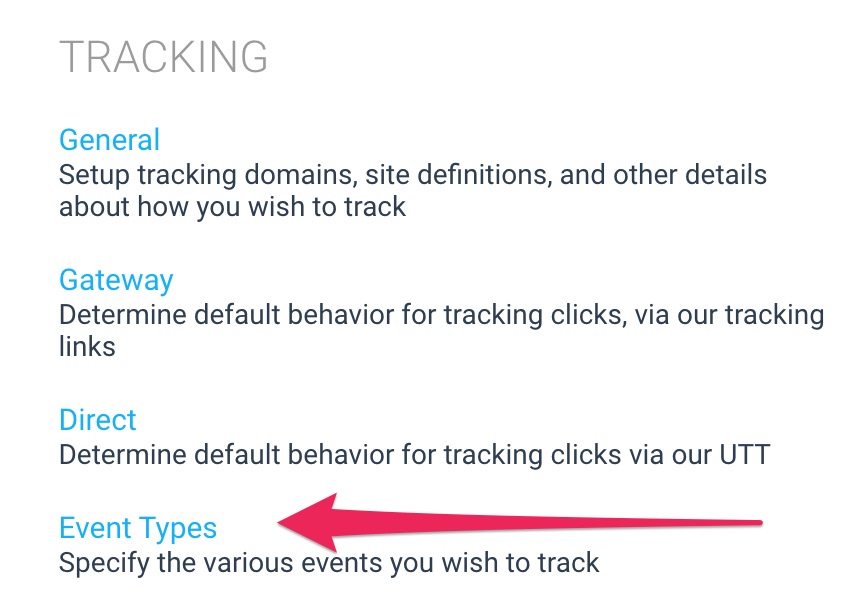
3. In the *Program* column, under *Tracking*, select [**Event Types**](https://app.impact.com/secure/advertiser/tracking-settings/actiontracker/view-actiontracker-flow.ihtml).
4. Find the event type with a Type of "Impact FTP".
5. Hover your cursor over the row of the FTP event type, select  **\[More] → View / Edit**.
6. Select the **View IR FTP Credentials** button in the upper-right of the screen to access your credentials.
* Alternatively, you can select the pencil icon on the far right of the *Tracking Method* row.
* Under *Upload file to system FTP Server*, select **Email FTP Username and Password**.
* Any account user with the *Admin* or *Implementation Specialist* roles or with the *Technical Settings* permission should receive an email with the FTP credentials.
7. Use an FTP client to **connect to the impact.com FTP server** with the following settings:
| **Server:** | `ftp://batch.impact.com` |
| ----------- | ------------------------ |
| **Port:** | `21` |
\
Alternatively, the SFTP details are:
| **Server:** | `sftp://batch.impact.com` |
| ----------- | ------------------------- |
| **Port:** | `22` |
8. Once connected, upload your file to the **current directory**. You won't be able to see files within the directory.
9. After at least 30 minutes have passed, go to the impact.com platform and in the left navigation bar, select  **\[User profile] ->** [**Settings**](https://app.impact.com/secure/advertiser/account-settings-flow.ihtml).
10. In the left column, go to the *Technical* section and select [**File Submissions**](https://app.impact.com/secure/advertiser/accountSettings/techintegration/ftp-file-submissions-flow.ihtml).
11. On the *FTP File Submissions* screen, you should see your file upload in the list.
12. You can see the number of errors associated with the upload in the *Errors* column. View error details by selecting the *Actions* dropdown for the file, then select **View Errors**.
\

### Email
When submitting a file via Email (SMTP), **only include the unique email address for the event type in the "To:" field**. If you need to send this file to others, include them in the "CC" line.
1. From the left navigation bar, select  **\[User profile] →** [**Settings**](https://app.impact.com/secure/advertiser/account-settings-flow.ihtml).
2. On the right, under *Tracking*, select [**Event Types**](https://app.impact.com/secure/advertiser/tracking-settings/actiontracker/view-actiontracker-flow.ihtml).
3. Select the Event Type you want to submit server-side action tracking data for.
4. Next to *Returns Processing*, select **\[Edit]**.
5. Select **Email file to system SMTP server**, then copy your account-specific email address.
6. In the *To* field, paste your **unique impact.com email address** assigned to your account.
7. Upload your .CSV file as a file attachment to the email.
8. Send the email.
9. After at least 30 minutes have passed, go to the impact.com platform, and in the left navigation bar, select  **\[User profile] →** [**Settings**](https://app.impact.com/secure/advertiser/account-settings-flow.ihtml).
10. In the left column, go to the *Technical* section and select [**File Submissions**](https://app.impact.com/secure/advertiser/accountSettings/techintegration/ftp-file-submissions-flow.ihtml).
11. On the *FTP File Submissions* screen, you should see your file upload in the list.
### Partner FTP
{% hint style="success" %}
**Note:** You'll need to provide impact.com with login credentials for your FTP server.
{% endhint %}
1. From the left navigation bar, select  **\[User profile] →** **Settings**.
2. In the right column, go to the *Tracking* section and select [**Event Types**](https://app.impact.com/secure/advertiser/tracking-settings/actiontracker/view-actiontracker-flow.ihtml).
3. Next to the *Tracking* line item, confirm that you've provided a valid **Server URL**, **Username**, **Password**, **Port**, and **Directory**.
4. Place your .CSV file in the specified directory. impact.com will pull this file from your FTP server within 24 hours.
5. After at least 24 hours have passed, go to the impact.com platform and in the left navigation bar, select More [**Settings**](https://app.impact.com/secure/advertiser/account-settings-flow.ihtml).
6. In the left column, go to the *Technical* section and select [**File Submissions**](https://app.impact.com/secure/advertiser/accountSettings/techintegration/ftp-file-submissions-flow.ihtml).
7. On the *FTP File Submissions* screen, you should see your file upload in the list.
Once the impact.com app is fully installed, you can begin end-to-end testing to ensure everything is working properly. Learn how to proceed with [End-to-End Testing](/integration-guides/end-to-end-tests.md).
---
# Agent Instructions
This documentation is published with GitBook. GitBook is the documentation platform designed so that both humans and AI agents can read, navigate, and reason over technical content effectively. Learn more at gitbook.com.
## Querying This Documentation
If you need additional information that is not directly available in this page, you can query the documentation dynamically by asking a question.
Perform an HTTP GET request on the current page URL with the `ask` query parameter, and the optional `goal` query parameter:
```
GET https://integrations.impact.com/integration-guides/for-brands/checklist-tracking-integrations/ftp-express-setup.md?ask=&goal=
```
`ask` is the immediate question: it should be specific, self-contained, and written in natural language.
`goal` is optional and describes the broader end goal you are ultimately trying to accomplish on behalf of the user. GitBook uses it to tailor the answer towards what is most useful for that goal.
The response will contain a direct answer to the question and relevant excerpts and sources from the documentation.
Use this mechanism when the answer is not explicitly present in the current page, you need clarification or additional context, or you want to retrieve related documentation sections.