> For the complete documentation index, see [llms.txt](https://integrations.impact.com/llms.txt). Markdown versions of documentation pages are available by appending `.md` to page URLs; this page is available as [Markdown](https://integrations.impact.com/integration-guides/for-brands/plugin-integrations/e-commerce/integrate-with-amazon.md).
# Integrate with Amazon
If you're a brand selling products on Amazon and looking to increase sales, then you can join impact.com's Seller offering to increase traffic to your Amazon store.
Historically, impact.com could only track traffic to direct-to-consumer sites, or e-commerce sites where brands sell directly to customers without using 3rd-party intermediaries like Amazon. Now we can track partner traffic to your products on Amazon if you create an impact.com Seller program and integrate it with your Amazon account.
## How it works
You'll set up an impact.com Seller program and link it with your Amazon store to seamlessly sync conversion and product catalog data with our platform. You'll then have access to the suite of powerful tools we offer, allowing you to discover partners who are a great fit, set their commission rates, track their performance as they start driving traffic to your products, and manage their payouts — all on one platform. See [Amazon Seller Program Explained](https://help.impact.com/brand/what-would-you-like-to-learn-about/seller-program/amazon-seller-program/amazon-seller-program-explained) to learn more.
{% hint style="success" %}
**Note:** Each Seller program tracks one Amazon region—see [this FAQ](https://help.impact.com/brand/what-would-you-like-to-learn-about/seller-program/amazon-seller-program/amazon-seller-faqs-for-brands#can-i-run-a-amazon-seller-program-in-multiple-regions) to learn why. If you sell in more than one country, set up a separate program for each region you want to track.
{% endhint %}
## Prerequisites
* **Amazon brand**: You are a [Seller/Vendor](https://ecommercenurse.com/differences-between-sellers-and-vendors-on-amazon) actively selling on Amazon.
* **Admin-level access:** You have admin-level access to your Amazon Ads and Amazon Seller/Vendor Central accounts.
* **Supported location**: You sell on Amazon sites in the United States (US), Canada, Mexico, the UK, Germany, France, Italy, Spain, or the Netherlands.
* **Registered brand owner**: You are listed as the brand owner in [Amazon's registry](https://sell.amazon.com/brand-registry).
* **Catalog size**: Your Amazon catalog has 1,000 products or fewer. If your catalog exceeds this, you'll need to [upload it manually](https://help.impact.com/brand/what-would-you-like-to-learn-about/platform-features/product-catalogs/add-product-catalogs-as-a-brand#format).
## Setup instructions
If you already have an impact.com account, you can take advantage of Seller by simply launching a new program and recruiting your favorite partners.
If you're new to impact.com, you can open a Seller Starter account using [this link](https://app.impact.com/signup/create-brand-flow.ihtml?edition=starter\&programType=SELLER%E2%80%8B%E2%80%8B%E2%80%8B), then continue the steps below.
Alternatively, if you have an existing Starter edition account, you can get an Amazon Seller program without upgrading your subscription. Contact [Support](https://app.impact.com/support/portal.ihtml) to help you add the Seller program to your account, then continue the steps below.
{% stepper %}
{% step %}
### Create a new Seller program
1. From the top navigation bar, select  **\[User profile]** **→** [**Settings**](https://app.impact.com/secure/advertiser/account-settings-flow.ihtml).
2. In the left column, under *General*, select **Manage Programs**.
3. In the upper-right corner of the *Manage Programs* screen, select **Create Program**.
4. Enter a Program Name and under *Program Type*, select **Seller → Get Started**.
{% hint style="success" %}
**Note:** If you don't see the *Seller* program option in your settings, you may need to upgrade your impact.com subscription. Contact [support](https://app.impact.com/support/portal.ihtml) for assistance.
{% endhint %}
{% endstep %}
{% step %}
### Set up your program
Follow the prompts in the onboarding checklist to set up your program:
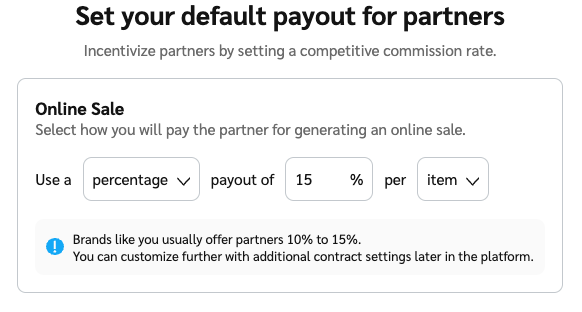
1. **Set your default payout rate** — To drive interest from partners, ensure your payout rates are higher than the rates they would receive for promoting your products through Amazon Associates.
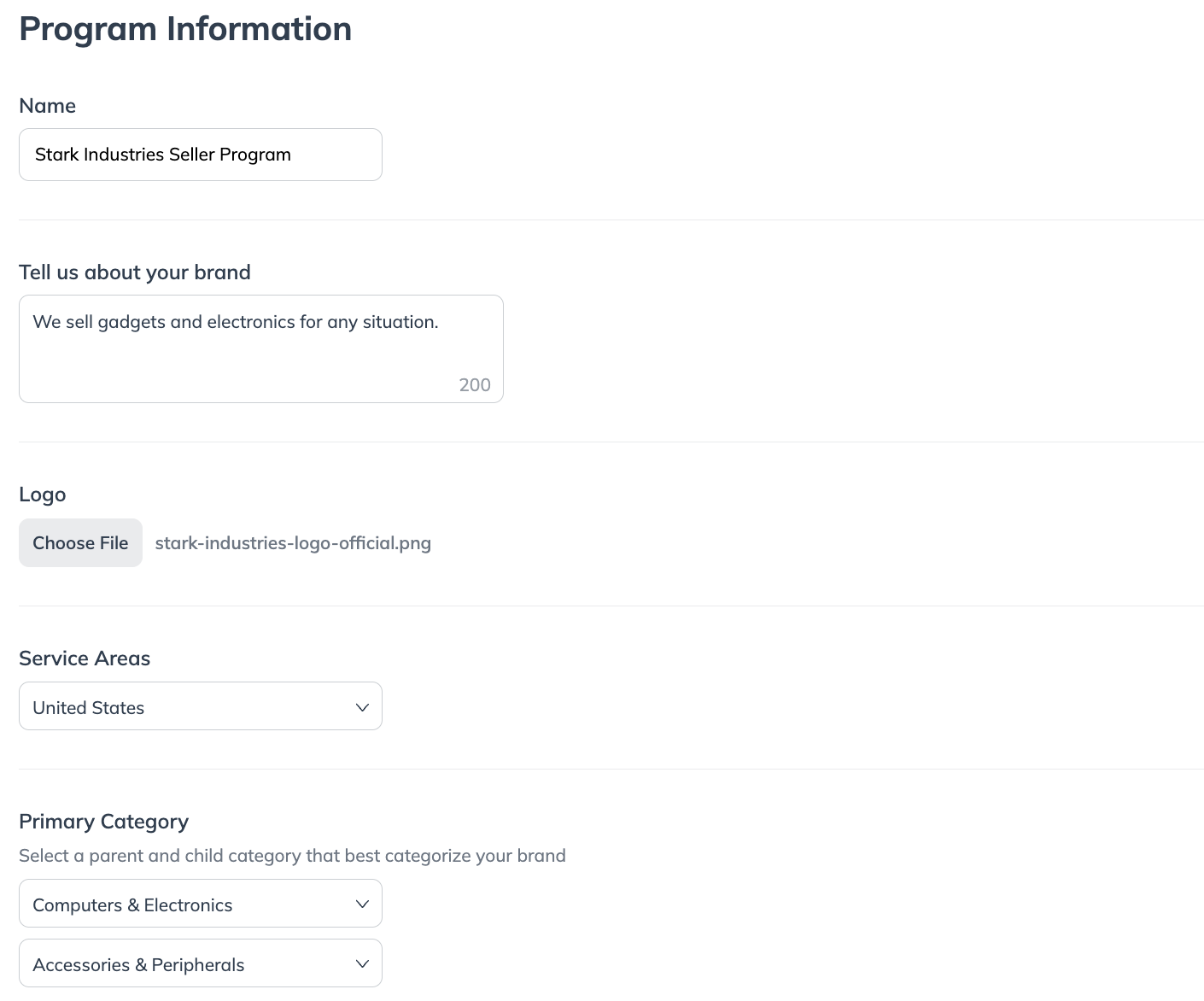
2. **Fill in your program information** — This information will be visible to partners on your marketplace profile.
3. **Enter the website URL you want to track** — Enter your Amazon storefront URL. The deep link domain is set automatically and can't be edited during onboarding.
{% endstep %}
{% step %}
### Connect your Amazon store
{% hint style="warning" %}
**Important:** You'll need admin-level access to your Amazon Ads and Amazon Seller/Vendor Central accounts to complete this step. Without it, authorization will fail.
{% endhint %}
1. Select **Connect your Amazon Store** to authenticate your Amazon Attribution and Seller/Vendor account.
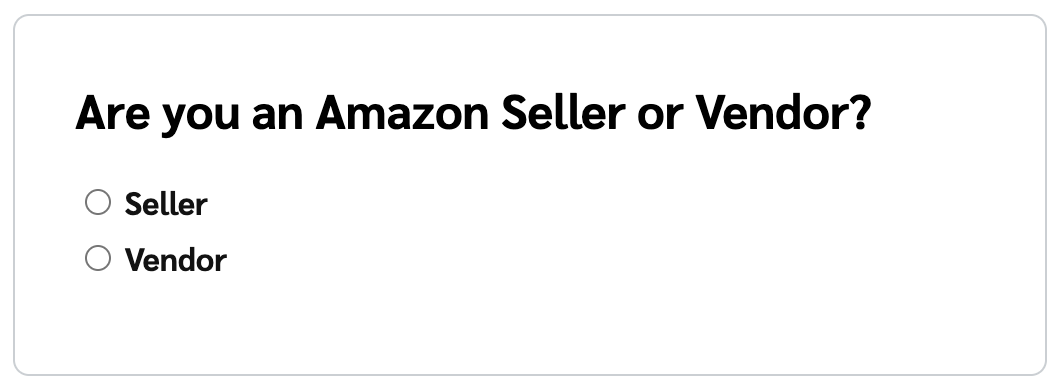
* **Connect your Amazon store** to impact.com:
* Select if you're connecting a Seller/Vendor account.
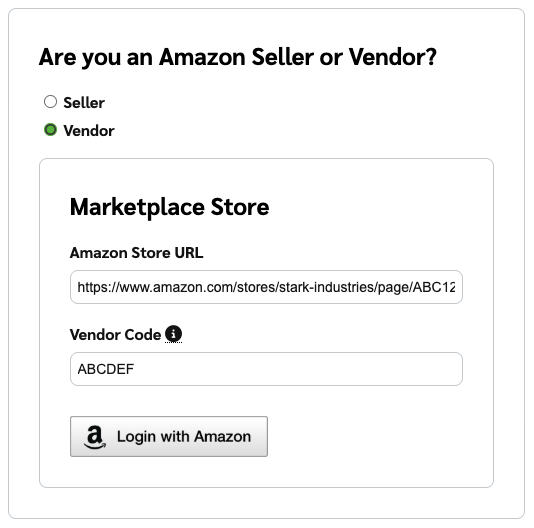
2. **Enter your store URL** — In the expanded section, enter your **Amazon Store URL** and then proceed to **Login with Amazon**.
* If you're connecting a Vendor account, enter your **Vendor Code** as well.
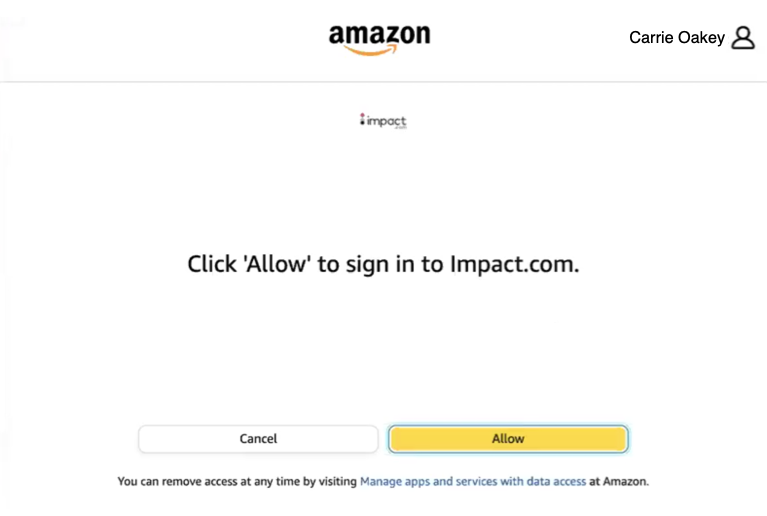
3. **Sign in to your Amazon Advertising account:**
* In the popup that opens, select Allow.
* **Allow** impact.com to access your Amazon Advertising profile and advertising campaigns.
* If you have multiple Amazon Advertising profiles for the region, choose one and select **Submit**.
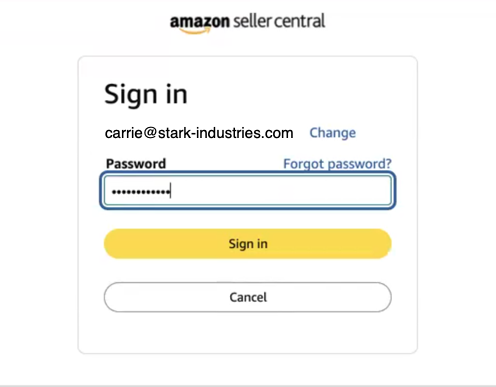
4. **Sign in to your Amazon Seller/Vendor account:**
* In the pop up that opens, enter the **email address** or **mobile number** associated with your Amazon Seller/Vendor account, then **Continue**.
* Enter your **password**, then select **Sign in**.
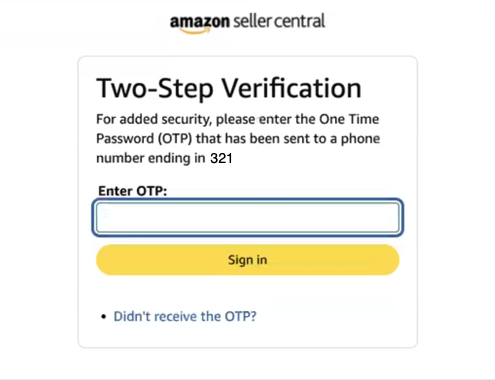
* Enter the OTP sent to your email address or mobile number and **Sign in**.
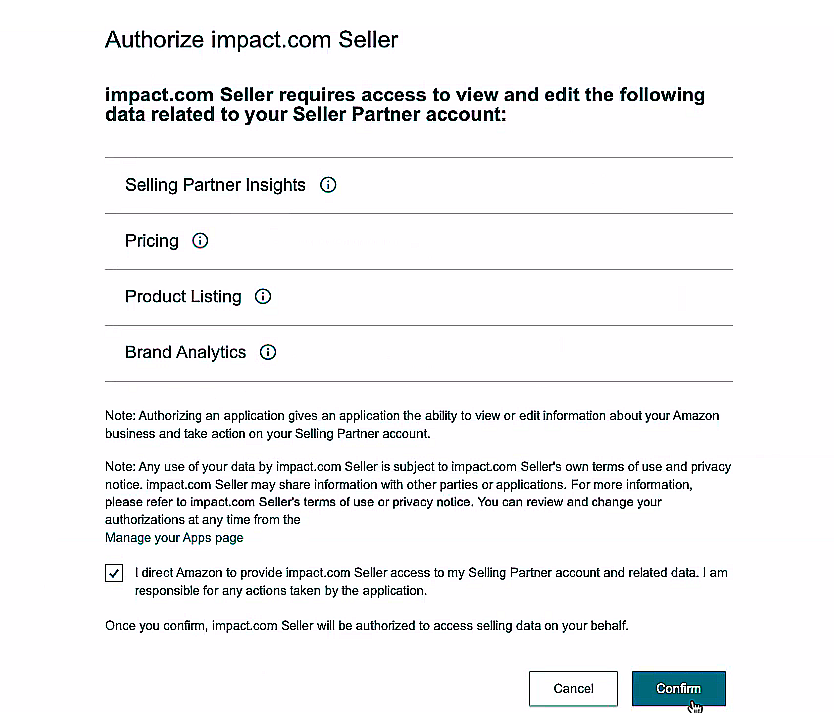
* Allow impact.com to access your Seller Central or Vendor Central for product catalog ingestion.
5. Once done, the tab will close and your onboarding checklist will be complete.
{% endstep %}
{% endstepper %}
## Reporting
Amazon applies its own data-sharing rules, so reporting for an Amazon Seller program works differently from a standard impact.com integration. Before reviewing your reports, see [Amazon Seller Reporting Explained for Brands](https://help.impact.com/brand/what-would-you-like-to-learn-about/seller-program/amazon-seller-program/amazon-seller-reporting-for-brands/amazon-seller-reporting-explained-for-brands) for the data delays, click and conversion thresholds, and reporting limitations to expect.
---
# Agent Instructions
This documentation is published with GitBook. GitBook is the documentation platform designed so that both humans and AI agents can read, navigate, and reason over technical content effectively. Learn more at gitbook.com.
## Querying This Documentation
If you need additional information that is not directly available in this page, you can query the documentation by asking a question.
Perform an HTTP GET request on the following URL with the `ask` and `goal` query parameters:
```
GET https://integrations.impact.com/integration-guides/for-brands/plugin-integrations/e-commerce/integrate-with-amazon.md?ask=&goal=
```
`ask` is the immediate question: it should be specific, self-contained, and written in natural language.
`goal` is what the user is ultimately trying to achieve, the reason they need the answer. Sharing it helps GitBook give you a better, more relevant answer. A goal is most helpful when it describes the outcome the user wants rather than restating the question. For example, with `ask=how do I create an API token`, a goal like `automate deployments from our CI pipeline` lets GitBook tailor the answer to that use case.
The response will contain a direct answer to the question and relevant excerpts and sources from the documentation.
Use this mechanism when the answer is not explicitly present in the current page, you need clarification or additional context, or you want to retrieve related documentation sections.