For the complete documentation index, see llms.txt. This page is also available as Markdown.

Integrate with Shopify & Bold Subscriptions

Affiliate Marketing on Shopify integrates impact.com's conversion tracking & reporting with your Shopify store. It's an easy-to-use plugin where you can integrate, end-to-end test, and launch quickly without needing web development expertise.

This guide covers…

  • A check that needs to be performed before integrating

  • How to find and install the impact.com plugin to your Shopify store that uses Bold Subscriptions for recurring subscriptions

  • Full end-to-end conversion testing in your store

  • Troubleshooting tips

  • How order (and item) reversals and modifications work

Check before integrating

impact.com will complete several integration steps on your behalf. Check with your implementation engineer to confirm that the following configuration steps have been completed: Event Type, Gateway Tracking, and General Tracking.

Then confirm the following about your Shopify store and impact.com account:

  • Your store landing page is hosted by Shopify, not externally. Custom shopping experiences are not supported at this time.

  • Shopify requires sites hosted on its platform to have the Customer Privacy cookie banner enabled. EMEA-based storefronts will need customers to opt in for consent to be tracked.

  • All products in your Shopify store are assigned a SKU (stock keeping unit). Learn how to edit products in Shopify.

  • You're tracking recurring subscription purchases with Bold Subscriptions, in addition to online sales and first-time subscriptions.

  • View-Through Tracking is disabled in your impact.com account. By default this option is disabled, so if you haven't specifically requested it in the past, it should be disabled. See the General Tracking Configuration section below for more information.

  • Your Shopify store theme respects hidden line item properties. Per Shopify's documentation, any line item property value beginning with an underscore (for example, _hiddenPropertyName) should be hidden from customers at checkout. If your theme does not follow this best practice, the clickId will be shown to customers.

Add Impact to Shopify


This instruction set covers integrating impact.com to your Shopify store, then making a necessary subscription tag in Bold.

Install impact.com's plugin

  1. While logged in to Shopify, visit the Affiliate Marketing by impact.com app in the Shopify App Store and select Install.

  1. Shopify will prompt you that you're about to install Impact: Partnership Cloud. Review the details on the screen, and select Install App.

  1. Once installed, find it in your list of Shopify apps. To begin, select Activate Integration.

  1. Add your impact.com account information:

  • Refer to your Program Elements document for your specific account information.

Field
Description

Impact Account SID *

Navigate to [User profile] → Settings → API to find your Account SID. Copy the full case-sensitive value.

Auth Token *

Navigate to [User profile] → Settings → API to find your Auth Token. Copy the full case-sensitive value.

Program ID *

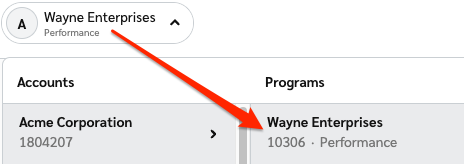
Enter your Program ID value. To find this value, select your brand name in the top-left corner of the impact.com app. Your Program ID is the numerical value under the program name.

Program ID screenshot

Sale and Subscriptions Tracker *

In the impact.com platform, navigate to your Event Types. Copy the number in parenthesis next to the name of the Online Sale event type.

Recurring Subscription Tracker *

In the impact.com platform, navigate to your Event Types. Copy the number in parenthesis next to the name of the Recurring Subscription event type.

UTT Required *

Set this to Yes to enable Universal Tracking Tag requirements.

  1. Select Save. You'll see a confirmation screen for the enabled integration, along with your impact.com account info.

Configure Bold Subscriptions

  1. In Shopify, navigate to the Bold Subscriptions app.

  2. Select Settings → General.

  3. Under First Order, create a custom tag named first_order

Once the impact.com app is fully installed, you can begin end-to-end testing to ensure everything is working properly. Learn how to proceed with End-to-End Testing.

Troubleshooting

My test conversion isn't appearing in impact.com

If your test conversion isn't appearing, check the following:

  • You accessed your Shopify store using the test partner tracking link in Step 5. If you don't use this link, the conversion won't be credited to your test partner and may not appear.

  • You've waited at least 30 minutes since the test conversion occurred in your Shopify store. Conversion reporting can take up to 2-4 hours during peak times — consider checking back later in a few hours.

  • Your Event Type ID in Shopify exactly matches the Event Type ID in impact.com.

  • Use the OrderId (OID) Lookup tool to search for the Shopify Order ID of the test order.

If the conversion still hasn't appeared after several hours, there may be something wrong with integration. Reverse the order in Shopify, verify that you've followed the installation instructions & end-to-end testing instructions closely, then try again.

IrClickId appears under "Additional Details" on the Shopify Order page

When you view an order in Shopify that was tracked by impact.com, you may notice the irclickid value appears in the Additional Details section on the order page.

The integration does not overwrite any existing or new notes you apply to customers in Shopify. Any notes you had for a customer will remain untouched, and new notes can be individually created.

Modifications & Reversals


Once integrated, you can modify & reverse items and/or entire orders in Shopify and Impact will update actions accordingly.

A few things to keep in mind:

  • A SKU represents an item within an order. For example, if an order has 1 item with the SKU 1ABC23 priced at 10.00, the line item SKU amount would be 10.00.

  • A line item SKU is a SKU with a quantity larger than 1 in an order (e.g., the order has multiples of the same item). For example, if an order has 2 items, both with the SKU 1ABC23 priced at 10.00 each, the line item SKU amount would be 20.00. impact.com will always show the line item SKU amount.

  • When applying order-level reversals, the amount reversed from the order is distributed and weighted across all items within an order. In some cases, reversing certain amounts at the order-level could completely reverse an item if the item's price is less than the weighted amount that's applied to it.

  • When applying item-level reversals after an order level discount has already been applied, the remaining amount for the item will be weighted / deducted across the remaining items.

Item-level reversals

When modifying a SKU in Shopify, impact.com will receive the updated Quantity and Amount and apply it to the item.

Example

  1. Shopify reports an order to Impact with two different SKUs that both have the same price:

ITEM
PRICE

1ABC23

10.00

9XYZ87

10.00

TOTAL

20.00

  1. In Shopify, a 5.00 reversal is applied to this order, which is distributed across all SKUs in the order. It will now show in Impact as:

ITEM
PRICE

1ABC23

07.50

9XYZ87

07.50

TOTAL

15.00

The 5.00 is split evenly across the price of the two items in the order.

  1. Let's reverse an individual line item: SKU 1ABC23 is fully reversed, which at its original price of 10.00, means that 10.00 is reduced from the order.

ITEM
PRICE

1ABC23

00.00

9XYZ87

05.00

TOTAL

05.00

Since the item was already reduced at the order level, the remaining 2.50 that can't be removed from 1ABC23 (since it was already reduced) is applied evenly to the rest of the items in the order.

  1. One final step: reverse 9XYZ87, meaning 10.00 is reduced from the order. Since it's the only item left and has been reduced down to 5.00, reversing this will refund the entire order in Shopify and reverse the action in Impact.

Order-level reversals

Example

  1. Shopify reports an order to Impact with two different SKUs that both have the same price:

ITEM
PRICE

1ABC23

10.00

9XYZ87

10.00

TOTAL

20.00

  1. In Shopify, a 5.00 reversal is applied to this order, which is distributed across all SKUs in the order. It will now show in Impact as:

ITEM
PRICE

1ABC23

07.50

9XYZ87

07.50

TOTAL

15.00

The 5.00 is split evenly across the price of the two items in the order.

  1. Going another step further, the order has a 15.00 reversal applied to it in Shopify. The order is fully refunded in Shopify and reversed in Impact:

ITEM
PRICE

1ABC23

00.00

9XYZ87

00.00

TOTAL

00.00

Supported parameters


The table below lists all of the supported parameters of the integration — in other words, data that Impact captures from Shopify.

Parameter
Example
Description

CampaignId

8882

Also known as a Program ID, this is the ID number for your Impact program/campaign.

ActionTrackerId

16027

Also known as the Event Type ID, this is the ID number for your Impact event type.

EventDate

2020-06-18T14%3A33%3A49

Tracks the date that the action occurred.

ClickId

2uz3sQWFlxyJRcqwUx0Mo34VUkiyyO0tIzeG3U0

This is the Click Id associated with the action.

OrderId

2516623458378

This is the Impact Oid (Order ID) value associated with the action (not the Shopify Order ID).

CustomerId

3222174466122

If you're tracking and passing customer info, this is an ID number to reference the customer associated with the order.

CustomerEmail

38b85baa75385758d44d3dbfd97921c32e0d09a9

If you're tracking and passing customer info, this is the SHA1 hash of the customer's email.

CustomerStatus

EXISTING or NEW

If you're tracking and passing customer info, this is the status of the customer associated with the order.

CurrencyCode

USD

This is the currency code for the currency recorded in the action.

IpAddress

1.1.1.1

The IP address associated with the action.

UserAgent

Mozilla/5.0 (Macintosh; Intel Mac OS X x.y; rv:42.0) Gecko/20100101 Firefox/42.0

The user agent string associated with the action.

For item-level data, the {i} value is replaced with an integer (e.g., 1), and increased for each item that's reported to Impact. For example, If an order had two items, it'd report ItemSku1, ItemQuantity1, ItemCategory1, ItemSubTotal1, then ItemSku2, ItemQuantity2, etc.

Parameter
Example
Description

ItemSku{i}

KS944RUR

The Shopify SKU number for an item in the action.

ItemQuantity{i}

1

The quantity amount for the first item in the action.

ItemCategory{i}

Electronics

The name of the Shopify Collection that the item is organized under.

ItemSubtotal{i}

60.00

The subtotal amount of the item before taxes, shipping, and any other costs are added onto the total.

Last updated