> For the complete documentation index, see [llms.txt](https://integrations.impact.com/llms.txt). Markdown versions of documentation pages are available by appending `.md` to page URLs; this page is available as [Markdown](https://integrations.impact.com/integration-guides/for-brands/plugin-integrations/e-commerce/integrate-with-shopify/integrate-with-shopify-and-recharge-subscriptions.md).
# Integrate with Shopify & Recharge Subscriptions
[**Affiliate Marketing**](https://apps.shopify.com/impact-1) on Shopify integrates impact.com's conversion tracking & reporting with your Shopify store. It's an easy-to-use plugin where you can integrate, end-to-end test, and launch quickly without needing web development expertise.
This guide covers…
* A check that needs to be performed before integrating.
* How to find and install the impact.com plugin to your Shopify store that uses [**Recharge Subscriptions**](https://apps.shopify.com/subscription-payments) for recurring subscriptions.
* Full end-to-end conversion testing in your store.
* Troubleshooting tips.
* How order (and item) reversals and modifications work.
## Check before integrating
impact.com will complete several integration steps on your behalf. Check with your implementation engineer to confirm that the following configuration steps have been completed: Event Type, Gateway Tracking, and General Tracking.
Then confirm the following about your Shopify store and impact.com account:
* Your store landing page is hosted by Shopify, not externally. [Custom shopping experiences](https://help.shopify.com/en/manual/custom-storefronts) are not supported at this time.
* Shopify requires sites hosted on its platform to have the [Customer Privacy cookie banner](https://shopify.dev/docs/api/customer-privacy) enabled. EMEA-based storefronts will need customers to opt in for consent to be tracked.
* All products in your Shopify store [are assigned a SKU](https://help.shopify.com/en/manual/products/details/sku) (stock keeping unit). [Learn how to edit products in Shopify](https://help.shopify.com/en/manual/products/add-update-products#edit-a-product).
* You're tracking recurring subscription purchases with [Recharge Subscriptions](https://apps.shopify.com/subscription-payments), in addition to online sales and first-time subscriptions.
* View-Through Tracking is disabled in your impact.com account. By default this option is disabled, so if you haven't specifically requested it in the past, it should be disabled.
* Your Shopify store theme respects hidden line item properties. Per [Shopify's documentation](https://shopify.dev/api/liquid/objects/line_item#line_item-properties), any line item property value beginning with an underscore (for example, `_hiddenPropertyName`) should be hidden from customers at checkout. If your theme does not follow this best practice, the `clickId` will be shown to customers.
## Add Impact to Shopify w/ Recharge
This instruction set covers installing [**Affiliate Marketing**](https://apps.shopify.com/impact-1) to your Shopify store.
{% hint style="success" %}
**Note:** No additional configuration is needed in the Recharge Payments dashboard — just make sure to add your recurring subscription event type when configuring impact.com in Shopify.
{% endhint %}
### Install impact.com's plugin
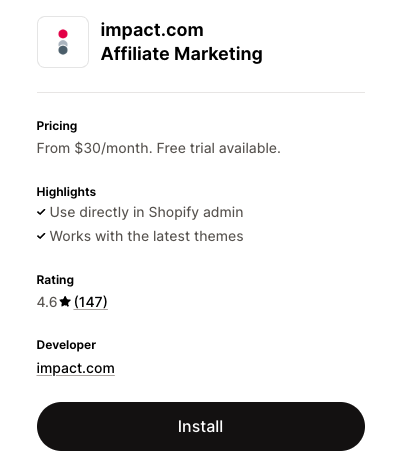
1. While [logged in to Shopify](https://www.shopify.com/login), visit the [**Affiliate Marketing by impact.com app**](https://apps.shopify.com/impact-1) in the Shopify App Store and select **Install**.
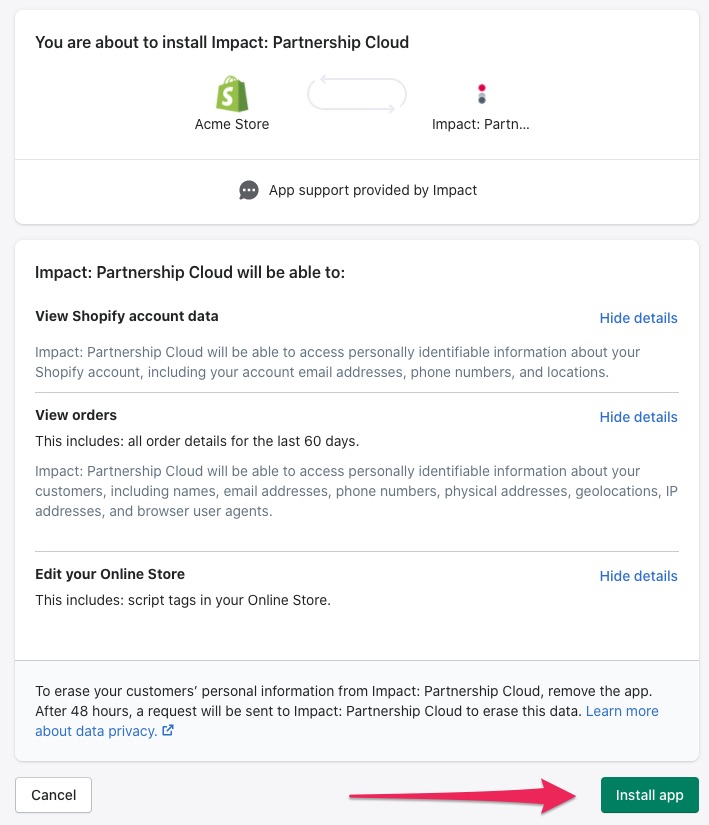
2. Shopify will prompt you that you're about to install *Impact: Partnership Cloud*. Review the details on the screen, and select **Install App**.
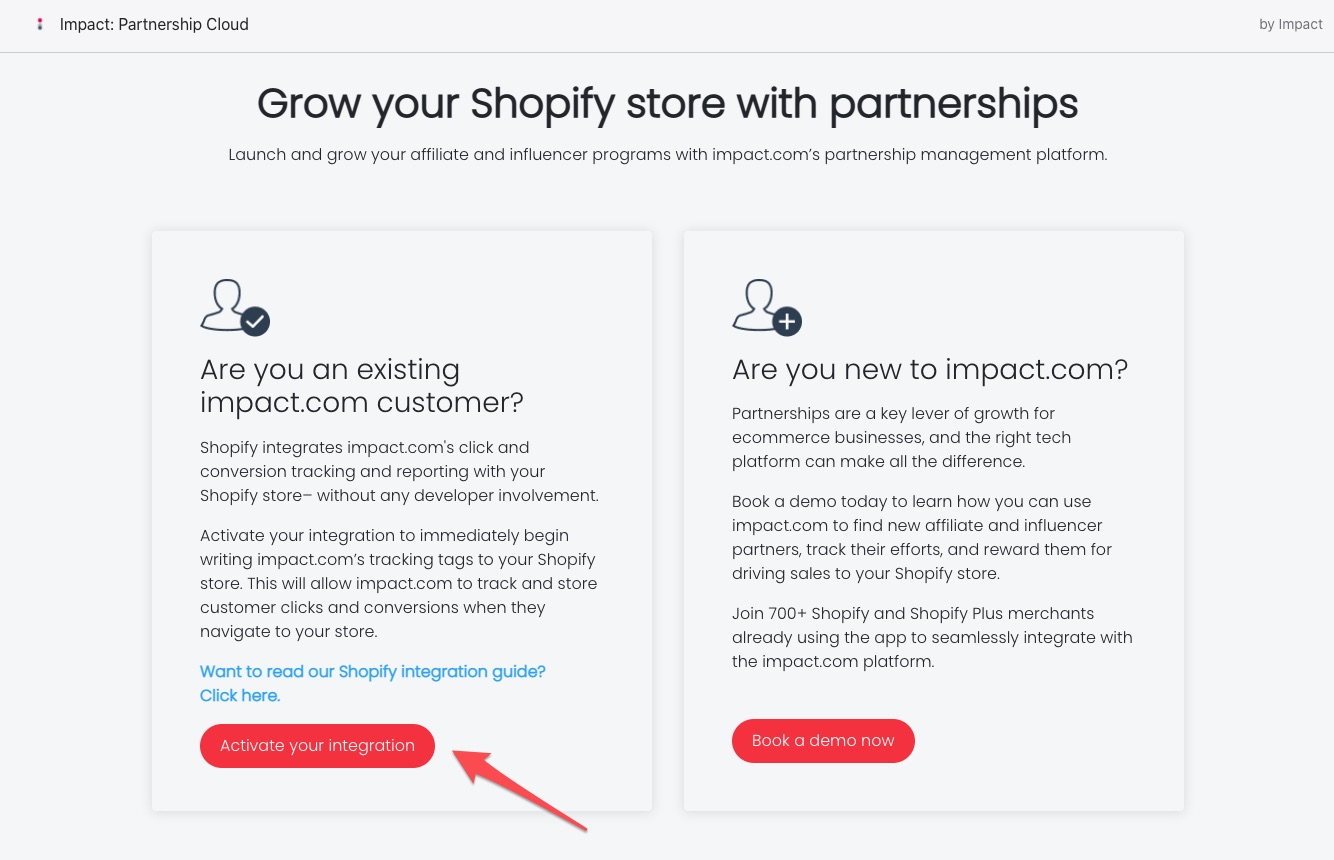
3. Once installed, find it in your list of Shopify apps. To begin, select **Activate your integration**.
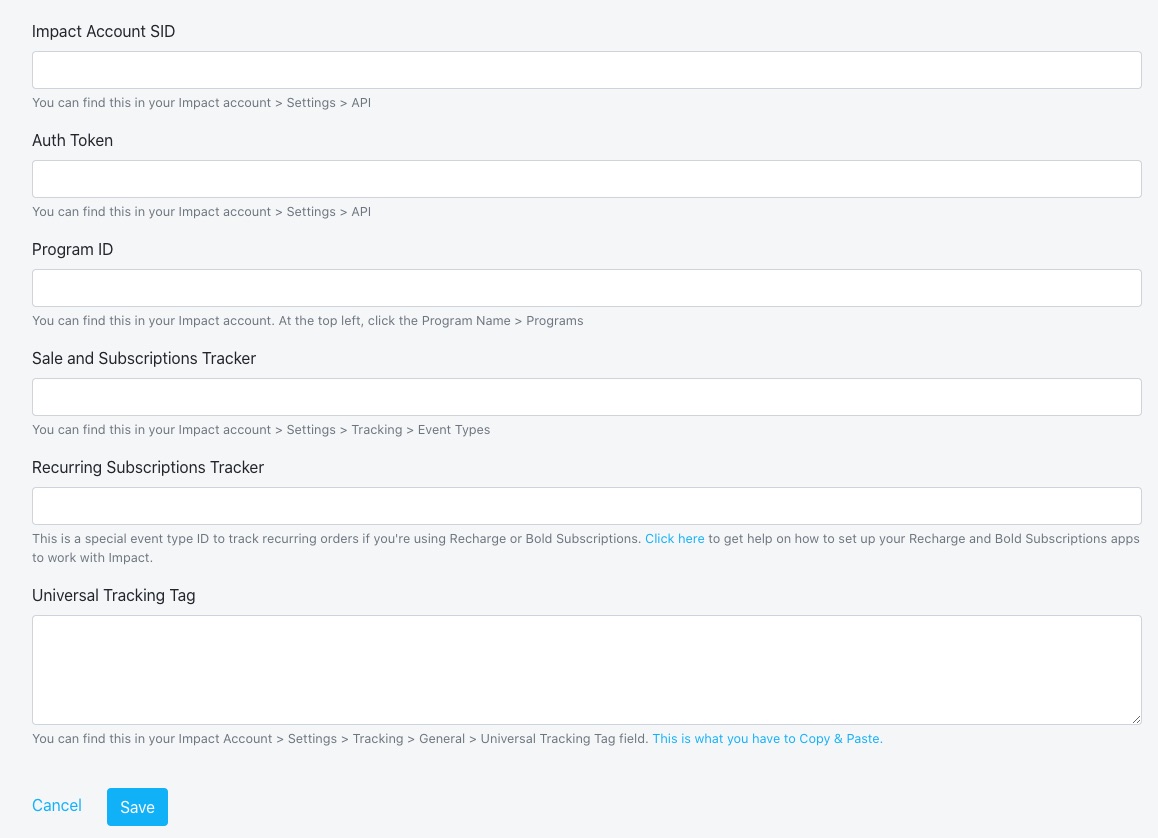
4. Add your impact.com account information:
{% hint style="success" %}
**Note:** Refer to your Program Elements document for your specific account information.
{% endhint %}
| Field | Description |
| ------------------------------------- | ---------------------------------------------------------------------------------------------------------------------------------------------------------------------------------------------------------------------------------------------------------------------------------------------------------------------------------------------------------------------------------------------------------------------------------------------------------------------------------------------------------------------- |
| **Impact Account SID \*** | In the impact.com platform, navigate to  **\[User profile] → Settings →** [API](https://app.impact.com/secure/advertiser/api/fr/api-access-tokens-ui.ihtml) and copy your Account SID. |
| **Auth Token \*** | In the impact.com platform, navigate to  **\[User profile] → Settings →** [API](https://app.impact.com/secure/advertiser/api/fr/api-access-tokens-ui.ihtml) and copy your Auth Token. |
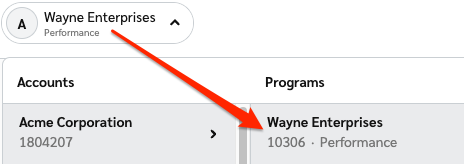
| **Program ID \*** |
In the impact.com platform, select your brand name in the top-left corner. Your Program ID is the numerical value under the program name.
|
| **Sale and Subscriptions Tracker \*** | In the impact.com platform, navigate to  **\[User profile] → Settings →** [Event Types](https://app.impact.com/secure/advertiser/tracking-settings/actiontracker/view-actiontracker-flow.ihtml). Copy the number in parenthesis next to the name of the Online Sale event type. |
| **Recurring Subscription Tracker \*** | In the impact.com platform, navigate to  **\[User profile] → Settings →** [Event Types](https://app.impact.com/secure/advertiser/tracking-settings/actiontracker/view-actiontracker-flow.ihtml). Copy the number in parenthesis next to the name of the Recurring Subscription event type. |
| **UTT Required \*** | Set this to **Yes** to enable Universal Tracking Tag requirements. |
5. Select **Save**. You'll see a confirmation screen for the enabled integration, along with your impact.com account info.
### How subscription orders are tracked
The app uses the order tags that Recharge adds to decide which event type each order goes to, and sets the `Text2` parameter:
| Order | Event type | `Text2` |
| -------------------------------------------------------------------------------------------------------------------------------------------------------------------------------------------------------------- | ---------------------------------------------------------------------------- | --------------------------------------------------------- |
| One-time purchase | Sale and Subscriptions Tracker | Not sent |
| First subscription order (tagged `Subscription First Order`) | Sale and Subscriptions Tracker | `FIRST` |
| Recurring subscription order (tagged `Subscription Recurring Order`) | Recurring Subscription Tracker | `RECURRING` |
* If an order is missing these tags, or the tags are renamed, the app tracks these order tags as a one-time purchase.
* `Text2` is set per order, not per item. If an order contains both a one-time item and a subscription item, the whole order is sent with `Text2` set to `FIRST`.
Once you have fully integrated the impact.com API, you can begin end-to-end testing to ensure everything is working properly. Learn how to proceed with [End-to-End Testing](/integration-guides/end-to-end-tests.md).
## Troubleshooting
My test conversion isn't appearing in impact.com.
If your test conversion isn't appearing, check the following:
* You've waited at least 30 minutes since the test conversion occurred in your Shopify store. Conversion reporting can take up to 2-4 hours during peak times — consider checking back later in a few hours.
* Your Event Type ID in Shopify *exactly matches* the Event Type ID in impact.com.
* [Use the OrderId (OID) Lookup tool](https://help.impact.com/brand/what-would-you-like-to-learn-about/platform-features/multi-program-reports/orderid-lookup-report) to search for the Shopify Order ID of the test order.
If the conversion still hasn't appeared after several hours, there may be something wrong with integration. Reverse the order in Shopify, verify that you've followed the installation instructions & end-to-end testing instructions closely, then try again.
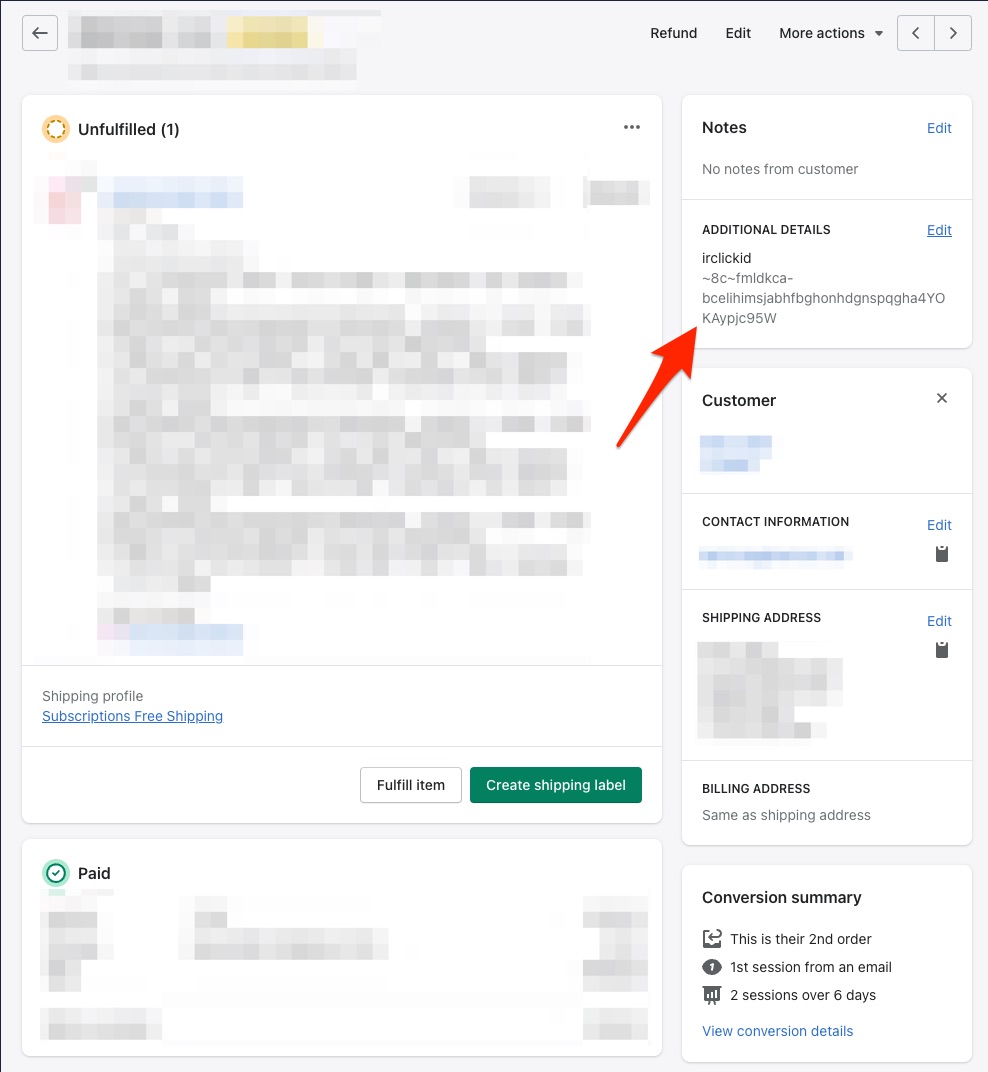
ircclickid appears under "Additional Details" on the Shopify Order page.
The absence of `irclickid` under the *Additional Details* section on a Shopify order doesn't necessarily mean there's a problem with your tracking setup.
In some cases, `irclickid` appears, showing that the order came from an impact.com click. However, it doesn't always appear even when the order is properly tracked. This can happen because of the way the customer reached your store or settings that affect tracking.
## Modifications & Reversals
Once integrated, you can modify & reverse items and/or entire orders in Shopify and Impact will update actions accordingly.
{% hint style="warning" %}
**Important:** Modifications and reversals you make in impact.com **will not** be sent to Shopify. We recommend that you always modify or reverse items & orders in Shopify first, then confirm it was modified/reversed in impact.com's platform.
{% endhint %}
A few things to keep in mind:
* A **SKU** represents an item within an order. For example, if an order has 1 item with the SKU `1ABC23` priced at 10.00, the line item SKU amount would be 10.00.
* A **line item SKU** is a SKU with a quantity larger than 1 in an order (e.g., the order has multiples of the same item). For example, if an order has 2 items, both with the SKU `1ABC23` priced at 10.00 each, the line item SKU amount would be 20.00. **impact.com will always show the line item SKU amount**.
* When applying order-level reversals, the amount reversed from the order is distributed and weighted across all items within an order. In some cases, reversing certain amounts at the order-level could completely reverse an item if the item's price is less than the weighted amount that's applied to it.
* When applying item-level reversals after an order level discount has already been applied, the remaining amount for the item will be weighted / deducted across the remaining items.
### Item-level reversals
When modifying a SKU in Shopify, impact.com will receive the updated `Quantity` and `Amount` and apply it to the item.
#### Example
1. Shopify reports an order to Impact with two different SKUs that both have the same price:
| ITEM | PRICE |
| --------- | --------- |
| 1ABC23 | 10.00 |
| 9XYZ87 | 10.00 |
| **TOTAL** | **20.00** |
2. In Shopify, a 5.00 reversal is applied to this order, which is distributed across all SKUs in the order. It will now show in Impact as:
| ITEM | PRICE |
| --------- | --------- |
| 1ABC23 | 07.50 |
| 9XYZ87 | 07.50 |
| **TOTAL** | **15.00** |
> The 5.00 is split evenly across the price of the two items in the order.
3. Let's reverse an individual line item: SKU `1ABC23` is fully reversed, which at its original price of 10.00, means that 10.00 is reduced from the order.
| ITEM | PRICE |
| --------- | --------- |
| 1ABC23 | 00.00 |
| 9XYZ87 | 05.00 |
| **TOTAL** | **05.00** |
> Since the item was already reduced at the order level, the remaining 2.50 that can't be removed from `1ABC23` (since it was already reduced) is applied evenly to the rest of the items in the order.
4. One final step: reverse `9XYZ87`, meaning 10.00 is reduced from the order. Since it's the only item left and has been reduced down to 5.00, reversing this will refund the entire order in Shopify and reverse the action in Impact.
### Order-level reversals
#### Example
1. Shopify reports an order to Impact with two different SKUs that both have the same price:
| ITEM | PRICE |
| --------- | --------- |
| 1ABC23 | 10.00 |
| 9XYZ87 | 10.00 |
| **TOTAL** | **20.00** |
2. In Shopify, a 5.00 reversal is applied to this order, which is distributed across all SKUs in the order. It will now show in Impact as:
| ITEM | PRICE |
| --------- | --------- |
| 1ABC23 | 07.50 |
| 9XYZ87 | 07.50 |
| **TOTAL** | **15.00** |
> The 5.00 is split evenly across the price of the two items in the order.
3. Going another step further, the order has a 15.00 reversal applied to it in Shopify. The order is fully refunded in Shopify and reversed in Impact:
| ITEM | PRICE |
| --------- | --------- |
| 1ABC23 | 00.00 |
| 9XYZ87 | 00.00 |
| **TOTAL** | **00.00** |
## Supported parameters
The table below lists all of the supported parameters of the integration — in other words, data that Impact captures from Shopify.
| Parameter | Example | Description |
| --------------- | -------------------------------------------------------------------------------- | --------------------------------------------------------------------------------------------------------------------------------------------------------------------------------------------------------------------------------------------------------------------------------------------------------------------------------------------------------------------------------- |
| CampaignId | 8882 | Also known as a *Program ID*, this is the ID number for your Impact program/campaign. |
| ActionTrackerId | 16027 | Also known as the *Event Type ID*, this is the ID number for your Impact event type. |
| EventDate | 2020-06-18T14%3A33%3A49 | Tracks the date that the action occurred. |
| ClickId | 2uz3sQWFlxyJRcqwUx0Mo34VUkiyyO0tIzeG3U0 | This is the Click Id associated with the action. |
| OrderId | 2516623458378 | This is the **Impact Oid (Order ID)** value associated with the action (not the Shopify Order ID). |
| CustomerId | 3222174466122 | If you're tracking and passing customer info, this is an ID number to reference the customer associated with the order. |
| CustomerEmail | 38b85baa75385758d44d3dbfd97921c32e0d09a9 | If you're tracking and passing customer info, this is the SHA1 hash of the customer's email. |
| CustomerStatus | EXISTING or NEW | If you're tracking and passing customer info, this is the status of the customer associated with the order. |
| CurrencyCode | USD | This is the currency code for the currency recorded in the action. |
| IpAddress | 1.1.1.1 | The IP address associated with the action. |
| UserAgent | Mozilla/5.0 (Macintosh; Intel Mac OS X x.y; rv:42.0) Gecko/20100101 Firefox/42.0 | The user agent string associated with the action. |
| Text2 | FIRST | Subscription order type: `FIRST` on the first subscription order, `RECURRING` on later subscription orders. Not sent on one-time purchases. |
For item-level data, the `{i}` value is replaced with an integer (e.g., 1), and increased for each item that's reported to Impact. For example, If an order had two items, it'd report `ItemSku1`, `ItemQuantity1`, `ItemCategory1`, `ItemSubTotal1`, then `ItemSku2`, `ItemQuantity2`, etc.
| Parameter | Example | Description |
| ----------------- | ----------- | ----------------------------------------------------------------------------------------------------- |
| ItemSku`{i}` | KS944RUR | The Shopify SKU number for an item in the action. |
| ItemQuantity`{i}` | 1 | The quantity amount for the first item in the action. |
| ItemCategory`{i}` | Electronics | The name of the Shopify Collection that the item is organized under. |
| ItemSubtotal`{i}` | 60.00 | The subtotal amount of the item before taxes, shipping, and any other costs are added onto the total. |
---
# Agent Instructions
This documentation is published with GitBook. GitBook is the documentation platform designed so that both humans and AI agents can read, navigate, and reason over technical content effectively. Learn more at gitbook.com.
## Querying This Documentation
If you need additional information that is not directly available in this page, you can query the documentation by asking a question.
Perform an HTTP GET request on the following URL with the `ask` and `goal` query parameters:
```
GET https://integrations.impact.com/integration-guides/for-brands/plugin-integrations/e-commerce/integrate-with-shopify/integrate-with-shopify-and-recharge-subscriptions.md?ask=&goal=
```
`ask` is the immediate question: it should be specific, self-contained, and written in natural language.
`goal` is what the user is ultimately trying to achieve, the reason they need the answer. Sharing it helps GitBook give you a better, more relevant answer. A goal is most helpful when it describes the outcome the user wants rather than restating the question. For example, with `ask=how do I create an API token`, a goal like `automate deployments from our CI pipeline` lets GitBook tailor the answer to that use case.
The response will contain a direct answer to the question and relevant excerpts and sources from the documentation.
Use this mechanism when the answer is not explicitly present in the current page, you need clarification or additional context, or you want to retrieve related documentation sections.