# Integrate with SHOPLINE

[**impact.com's plugin**](https://apps.shopline.com/detail/imapct_com) for SHOPLINE makes it easy to recruit, track, and manage partners that want to promote your online store without needing coding knowledge. Follow this step-by-step guide to learn about the integration process.

### Check before integrating

impact.com will complete several integration steps on your behalf. Check with your implementation engineer to ensure that the following configuration steps have been completed: *Event Type*, *Gateway Tracking*, *General Tracking*.

### Add impact.com to SHOPLINE

Follow the steps below to install [impact.com's plugin](https://apps.shopline.com/detail/imapct_com) to your SHOPLINE store.

### Install impact.com's plugin

1. Navigate to the impact.com app page in the SHOPLINE App Store, then select **Install**.

<div data-with-frame="true"><figure><img src="/files/oE7rI1cmY5Y5o8UMgGH5" alt="" width="563"><figcaption></figcaption></figure></div>

2. This will take you to your SHOPLINE store. Log in if you haven't already, then select **Authorize and install** on the screen that follows.

<div data-with-frame="true"><figure><img src="/files/YulOEryg99JpiczRLGXP" alt="" width="563"><figcaption></figcaption></figure></div>

3. Once installed, you should see the *Account Settings* tab, where you can enter your impact.com account details, including the *Impact Account SID*, *Impact Auth Token*, and your *Universal Tracking Tag*.

<div data-with-frame="true"><figure><img src="/files/AxQELZ2y5YaE0kk1Wali" alt="" width="563"><figcaption></figcaption></figure></div>

4. Next, depending on your program type, select either the *Performance Settings* or *Creator Settings* tab. Then complete the required fields, including your *Program ID*, *Sale and Subscriptions Tracker*, and *Recurring Subscriptions Tracker*.

<div data-with-frame="true"><figure><img src="/files/LijSuUgC8cgKNAc3vl11" alt="" width="563"><figcaption></figcaption></figure></div>

### Field reference

{% tabs %}
{% tab title="Account settings" %}

<table><thead><tr><th width="293.41796875">Field</th><th>Description</th></tr></thead><tbody><tr><td><strong>Impact Account SID *</strong></td><td>In the impact.com platform, navigate to your <a href="https://help.impact.com/en/support/solutions/articles/155000004762-manage-api-access-tokens-as-a-brand">API Credentials</a> to find your Account SID.</td></tr><tr><td><strong>Auth Token *</strong></td><td>In the impact.com platform, navigate to your <a href="https://help.impact.com/en/support/solutions/articles/155000004762-manage-api-access-tokens-as-a-brand">API Credentials</a> to find your Auth Token.</td></tr><tr><td><strong>Universal Tracking Tag (UTT) *</strong></td><td>In the impact.com platform, navigate to your <a href="https://app.impact.com/secure/advertiser/fr/general-tracking-settings.ihtml">UTT</a> and copy the entire unique code snippet.</td></tr></tbody></table>
{% endtab %}

{% tab title="Performance & Creator settings" %}

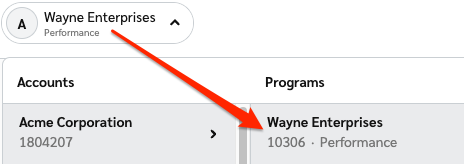
<table><thead><tr><th width="290.80078125">Field</th><th>Description</th></tr></thead><tbody><tr><td><strong>Program ID *</strong></td><td><p>Enter your <strong>Program ID</strong> value. To find this value, select your brand name in the top-left corner of the impact.com app. Your <strong>Program ID</strong> is the numerical value under the program name.</p><p><br><img src="https://files.readme.io/2edc9a646ec0744579c7d80854773dc742f408e01c48224be1fb9756c4d524f0-program_id.png" alt="Program ID"></p></td></tr><tr><td><strong>Sale and Subscriptions Tracker *</strong></td><td>In the impact.com platform, navigate to your <a href="https://help.impact.com/en/support/solutions/articles/155000000011-how-do-i-find-my-event-type-id-s-">Event Types</a>. Copy the number in parenthesis next to the name of the event type.</td></tr><tr><td><strong>Recurring Subscriptions Tracker *</strong></td><td>In the impact.com plugin, select the link below the <strong>Recurring Subscriptions Tracker</strong> field for more information.</td></tr></tbody></table>
{% endtab %}
{% endtabs %}

### End-to-End Testing

Once the impact.com app is fully installed, you can begin end-to-end testing to ensure everything is working properly. Learn how to proceed with [End-to-End Testing](/integration-guides/end-to-end-tests.md).

### Troubleshooting

<details>

<summary>My test conversion isn't appearing in impact.com</summary>

If your test conversion isn't appearing, check the following:

* You accessed your SHOPLINE store [**using the test partner tracking link**](https://integrations.impact.com/impact-brand/docs/end-to-end-tests) in Step 5. If you don't use this link, the conversion won't be credited to your test partner and may not appear.
* You've waited at least 30 minutes since the test conversion occurred in your SHOPLINE store. Conversion reporting can take up to 2-4 hours during peak times — consider checking back later in a few hours.
* Your Event Type ID in SHOPLINE *exactly matches* the Event Type ID in impact.com.

You can use the [OrderId (OID) Lookup tool](https://help.impact.com/brand/what-would-you-like-to-learn-about/platform-features/multi-program-reports/orderid-lookup-report) to search for the SHOPLINE Order ID of the test order.

</details>

### Modifications & reversals

{% hint style="warning" %}
**Important:** Always make sure to modify and/or reverse orders in SHOPLINE first, then check it was modified/reversed in impact.com. Actions you modify or reverse in impact.com will not be sent to SHOPLINE.
{% endhint %}

### Uninstall the plugin

1. Navigate to the **impact.com Affiliate Marketing** plugin on your apps list.
2. Then, select the ellipsis (three horizontal dots) icon, and select **App Removal**.

<div data-with-frame="true"><figure><img src="/files/X9pYPxEXfFW8LfyViQ6u" alt="" width="563"><figcaption></figcaption></figure></div>


---

# Agent Instructions: Querying This Documentation

If you need additional information that is not directly available in this page, you can query the documentation dynamically by asking a question.

Perform an HTTP GET request on the current page URL with the `ask` query parameter:

```
GET https://integrations.impact.com/integration-guides/for-brands/plugin-integrations/e-commerce/integrate-with-shopline.md?ask=<question>
```

The question should be specific, self-contained, and written in natural language.
The response will contain a direct answer to the question and relevant excerpts and sources from the documentation.

Use this mechanism when the answer is not explicitly present in the current page, you need clarification or additional context, or you want to retrieve related documentation sections.