# Integrate with Squarespace

The [impact.com](https://saasler-squarespace-impact.herokuapp.com/squarespace-connect) app in Squarespace integrates impact.com's conversion tracking & reporting with your Squarespace store. Our app is a no-code plugin, meaning you can integrate and end-to-end test without needing web development expertise.

This guide covers…

* A check that needs to be performed before integrating
* How to install the impact.com plugin to your Squarespace store
* Full end-to-end conversion testing in your store

### Check before integrating

Before proceeding with the Squarespace integration, ensure you have:

* Access to your impact.com account
* Admin access to your Squarespace store
* Your impact.com account credentials ready

### Understand the integration limitations

#### Taxes

Squarespace handles taxes in one of two ways:

1. **Exclusive taxes (supported in integration)**

Taxes will be added at checkout time. For example, if an item is listed with $10 price and the taxes that apply for the customer’s zip code has a 10% rate, at checkout time the customer will be charged $11 total for that product. $10 for the product and $1 on taxes.

2. **Inclusive taxes (not supported in integration)**

Taxes will be included in the price listed in your shop. For example, if an item is listed with a price of $10 and the zip code used in checkout has a 10% tax rate, the user will be charged $10 total for the product, $9.09 for the item, and $0.91 on taxes.

{% hint style="success" %}
**Note:** Only *exclusive tax* configurations are supported—certain limitations exist in Squarespace that result in *inclusive tax* configurations reporting incorrect values.
{% endhint %}

#### Automated Reversals must be configured separately

Automated reversals can be configured:

* Using impact.com's API `Update` method
* For full refunds: You can [update an action](https://integrations.impact.com/impact-brand/reference/update-an-action)
* For partial returns: You can [update an action item](https://integrations.impact.com/impact-brand/reference/update-an-action-item)
* By Batch FTP. Learn how to [Batch modifications and reversals via FTP](https://help.impact.com/brand/what-would-you-like-to-learn-about/platform-features/submit-and-modify-conversion-data/batch-modify-conversion-data/submit-batch-modifications-and-reversals)

#### Shipping discounts

* Squarespace can’t distinguish *product discounts* from *shipping discounts*. Due to this limitation, the impact.com integration recognizes any discounts with the word *shipping* in its name as *shipping discounts*, which are omitted when calculating the order’s total discount value.
* Squarespace stores allow customers to use multiple promo codes during checkout. impact.com can only support single promo code tracking in any given order. If promo code tracking is a part of your program, this integration will always send the first promo code to impact.com unless it contains *shipping*. If the first promo code contains *shipping*, the second promo code will be sent, if it exists.

## Add impact.com to Squarespace

***

This instruction set covers installing the *impact.com app* to your Squarespace store.

### Install impact.com's plugin

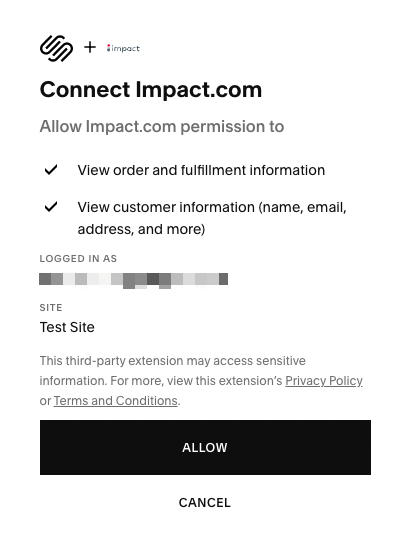
1. Select this [impact.com installation link](https://saasler-squarespace-impact.herokuapp.com/squarespace-connect) and select the Squarespace account you want to log in with.

<div data-with-frame="true"><figure><img src="/files/Qg3BPyTBUuWsROG78VM5" alt="" width="308"><figcaption></figcaption></figure></div>

2. Select **Allow**.
3. On the *Impact Settings* screen, fill in the relevant account data.

<div data-with-frame="true"><figure><img src="/files/jvPzVDcXCiFA7RLHX1Cb" alt="" width="563"><figcaption></figcaption></figure></div>

* See the Account Data table below for more information on how to access your account data.
* **Refer to your Program Elements document for your specific account information.**

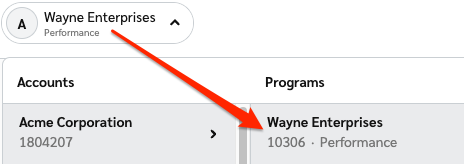
<table><thead><tr><th width="231.0625">Field</th><th>Description</th></tr></thead><tbody><tr><td>Impact Account SID *</td><td>In the impact.com platform, navigate to <img src="/files/UDyrrRTGbHJFFllCZxyw" alt=""> <strong>[User profile] → Settings →</strong> <a href="https://app.impact.com/secure/advertiser/api/fr/api-access-tokens-ui.ihtml"><strong>API</strong></a> and copy your Account SID.</td></tr><tr><td>Auth Token *</td><td>In the impact.com platform, navigate to <img src="/files/UDyrrRTGbHJFFllCZxyw" alt=""> <strong>[User profile] → Settings →</strong> <a href="https://app.impact.com/secure/advertiser/api/fr/api-access-tokens-ui.ihtml"><strong>API</strong></a> and copy your Auth Token.</td></tr><tr><td>Program ID *</td><td><p>In the impact.com platform, select your brand name in the top-left corner. Your <strong>Program ID</strong> is the numerical value under the program name.</p><p></p><p><img src="https://files.readme.io/2edc9a646ec0744579c7d80854773dc742f408e01c48224be1fb9756c4d524f0-program_id.png" alt="Program ID screenshot" data-size="original"></p></td></tr><tr><td>Event Type ID *</td><td>In the impact.com platform, navigate to <img src="/files/qPLiENtq33ewHc3tmEP4" alt=""> <strong>[User profile] → Settings →</strong> <a href="https://app.impact.com/secure/advertiser/tracking-settings/actiontracker/view-actiontracker-flow.ihtml"><strong>Event Types</strong></a>. Copy the number in parenthesis next to the name of the event type.</td></tr><tr><td>Universal Tracking Tag *</td><td>In the impact.com platform, navigate to your <a href="https://app.impact.com/secure/advertiser/fr/general-tracking-settings.ihtml">UTT</a> and copy the entire unique code snippet.</td></tr></tbody></table>

4. Select **Submit**.

### End-to-End Testing

Once the impact.com app is fully installed, you can begin end-to-end testing to ensure everything is working properly. Learn how to proceed with [End-to-End Testing](/integration-guides/end-to-end-tests.md).

{% hint style="success" %}
**Note:** Modifications and reversals you do in Squarespace are NOT automatically sent to impact.com.
{% endhint %}


---

# Agent Instructions: Querying This Documentation

If you need additional information that is not directly available in this page, you can query the documentation dynamically by asking a question.

Perform an HTTP GET request on the current page URL with the `ask` query parameter:

```
GET https://integrations.impact.com/integration-guides/for-brands/plugin-integrations/e-commerce/integrate-with-squarespace.md?ask=<question>
```

The question should be specific, self-contained, and written in natural language.
The response will contain a direct answer to the question and relevant excerpts and sources from the documentation.

Use this mechanism when the answer is not explicitly present in the current page, you need clarification or additional context, or you want to retrieve related documentation sections.