# Integrate with Chargebee

Chargebee is a subscription billing and revenue management platform. impact.com B2B brands are often running Performance programs to drive new subscription sign-ups and reward partners based on recurring payments from the sign-ups.

If you're using Chargebee, you can configure an integration to report subscription events and refunds directly to your program on impact.com.

## How it works

1. On your website (or store), you'll implement a script that captures an impact.com `im_ref` value from the user's landing page query string, then create a custom field in Chargebee account for the *Click ID* value.
2. You'll then generate a read-only Chargebee API key for impact.com to use.
3. You'll provide the Chargebee API key for impact.com via our partner integration portal, which will generate URLs for the webhooks.
4. Once authenticated, the integration uses *Event Webhooks* to capture subscription events and refund events from Chargebee and send them to your impact.com account.

### Check before integrating

Before proceeding with the Chargebee integration, ensure you have:

* Access to your impact.com account
* Admin access to your Chargebee account
* Your impact.com account credentials ready
* A Performance program set up in impact.com

### Configure a Chargebee custom field for the Click ID

Create an `impact_click_id` field and add it to the subscription as a custom field.<br>

1. [Log in to your Chargebee account](https://app.chargebee.com/login).
2. In the left navigation menu, select **Settings → Configure Chargebee**.
3. In the *Advanced* section, select **Custom fields**.

<div data-with-frame="true"><figure><img src="/files/GpM7rzkzMicfJMDrkmW8" alt="" width="563"><figcaption></figcaption></figure></div>

4. At the top of the screen, use to dropdown to select *Custom fields for your* **Subscription**, then select **Single line text**.

<div data-with-frame="true"><figure><img src="/files/kYyMOAV2V0BrB75PAubF" alt="" width="563"><figcaption></figcaption></figure></div>

5. For *Field Label*, enter `impact_click_id`.
6. Leave all other fields to their default values and select **Save to site**.

<div data-with-frame="true"><figure><img src="/files/kmIrPHRtfxC05YJDxHBR" alt="" width="563"><figcaption></figcaption></figure></div>

💡 **Example**

The example below indicates the JavaScript to add to your subscription checkout page to ensure that every new subscription record gets the `impact_click_id` value added to the subscription custom field:

{% tabs %}
{% tab title="JavaScript" %}

```javascript
<script type="text/javascript">
  (function() {
    const cbInstance = Chargebee.init({ site: "<site_subdomain>" });
    const checkoutButtonElement = document.querySelectorAll("[data-cb-type=checkout]")[0];
    const product = cbInstance.getProduct(checkoutButtonElement);
    ire('generateClickId', function(clickId) {
      product.setCustomData({ cf_impact_click_id: clickId });
    });
  })();
</script>
```

{% endtab %}
{% endtabs %}

{% hint style="warning" %}
**Multiple checkout buttons?**

If you have multiple checkout buttons on the same page, you’ll have to loop through the array returned by document.querySelectorAll("\[data-cb-type=checkout]") function instead of selecting the first position. In each iteration, you must set the impact\_click\_id for the product.
{% endhint %}

## Integration setup

{% stepper %}
{% step %}

### Create a Chargebee API key

{% hint style="info" %}
**Chargebee API Keys**\
[Refer to Chargebee Docs to learn how to create a read-only API key](https://www.chargebee.com/docs/2.0/api_keys.html#types-of-api-keys_read-only-key), or follow the steps below.
{% endhint %}

1. In the left navigation menu of your Chargebee account, select **Settings → Configure Chargebee**.
2. Next to *API Keys and Webhooks*, select **API keys**.
3. On the *API Keys and Webhooks* screen, select **Add API Key**.
4. In the *Create an API Key* modal, select **Read-Only Key**.
5. For the next step, select **All**, name the key **Impact**, then select **Create Key**.
   {% endstep %}

{% step %}

### Configure the integration

1. Access the impact.com [impact.com Integration Partner Portal](https://payments-integration.impact.com/).
2. On the dashboard under *Platforms*, select **Chargebee**.
3. On the login screen, enter your impact.com API **Account SID** & **Auth Token**.
   * Refer to the callout below for your Account SID & Auth Token.

<div data-with-frame="true"><figure><img src="/files/lzxv8wKjeOeidCyTgjIk" alt="" width="432"><figcaption></figcaption></figure></div>

4. Enter your impact.com info in the fields.

* Refer to the callout below for your Account SID & Auth Token.

<div data-with-frame="true"><figure><img src="/files/mKxhUo2lMu7caIkIBsGp" alt="" width="563"><figcaption></figcaption></figure></div>

5. Select **Submit**.

* The portal will display the information you submitted and generate two *Execution URLs* — one for conversions, and other for refunds. **Save your execution URLs somewhere safe** — you'll need to add these to your Chargebee account.

<div data-with-frame="true"><figure><img src="/files/RGhjGJjjnZcBuPEJOvmK" alt="" width="563"><figcaption></figcaption></figure></div>

### impact.com Account Info Cheat Sheet

Not sure what your account info is? Refer to the table below:

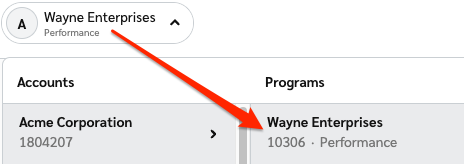
<table><thead><tr><th width="222.42578125">Field</th><th>Description</th></tr></thead><tbody><tr><td>Impact Account SID *</td><td>In the impact.com platform, from the top navigation bar, select <img src="/files/6BS5kdblJVHd72THmZfL" alt=""> <strong>[User profile] → Settings →</strong> <a href="https://app.impact.com/secure/advertiser/api/fr/api-access-tokens-ui.ihtml"><strong>API</strong></a> and copy your Account SID.</td></tr><tr><td>Auth Token *</td><td>In the impact.com platform, from the top navigation bar, select <img src="/files/6BS5kdblJVHd72THmZfL" alt=""> <strong>[User profile] → Settings →</strong> <a href="https://app.impact.com/secure/advertiser/api/fr/api-access-tokens-ui.ihtml"><strong>API</strong></a> and copy your Auth Token.</td></tr><tr><td>Program ID *</td><td><p>In the impact.com platform, select your brand name in the top-left corner. Your <strong>Program ID</strong> is the numerical value under the program name.</p><p></p><p><img src="https://files.readme.io/2edc9a646ec0744579c7d80854773dc742f408e01c48224be1fb9756c4d524f0-program_id.png" alt="Program ID screenshot"></p></td></tr><tr><td>Event Type ID *</td><td>In the impact.com platform, from the top navigation bar, select <img src="/files/6BS5kdblJVHd72THmZfL" alt=""><strong>[User profile] → Settings →</strong> <a href="https://app.impact.com/secure/advertiser/tracking-settings/actiontracker/view-actiontracker-flow.ihtml"><strong>Event Types</strong></a>. Copy the number in parenthesis next to the name of the event type.</td></tr><tr><td>Recurring Tracker ID *</td><td>In the impact.com platform, navigate to your <a href="https://help.impact.com/en/support/solutions/articles/155000000011-how-do-i-find-my-event-type-id-s-">Event Types</a>. Copy the number in parenthesis next to the name of the <em>Recurring Subscription</em> event type.</td></tr></tbody></table>
{% endstep %}

{% step %}

### Create Chargebee webhooks

#### Create a webhook for "Payment Succeeded"

1. In the Chargebee navigation menu, select **Settings → Configure Chargebee**.
2. Go to the *API Keys and Webhooks* section, then select **Webhooks**.
3. On the *Webhooks* screen, select **Add Webhook**.
4. For *Webhook Name*, input **Impact Conversion Webhook**.
5. For *Webhook URL*, input **the Execution URL for Conversions** you received from *impact.com Integration Partner Portal*.
6. Ensure *Protect webhook URL with basic authentication* is **\[Off]**.
7. For **API version**, select **Version 2**.
8. For *Events to Send*, use the dropdown to select **Payment Succeeded**.
9. Leave the remaining options **\[Off]**, then select **Create**.

<div data-with-frame="true"><figure><img src="/files/IOE5SU60FxyTzBZhpDtv" alt="" width="563"><figcaption></figcaption></figure></div>

#### Create a webhook for "Payment Refunded"

1. In the Chargebee navigation menu, select **Settings → Configure Chargebee**.
2. Go to the *API Keys and Webhooks* section, then select **Webhooks**.
3. On the *Webhooks* screen, select **Add Webhook**.
4. For *Webhook Name*, input **Impact Conversion Webhook**.
5. For *Webhook URL*, input **the Execution URL for Refunds** you received from the integration partners portal.
6. Ensure *Protect webhook URL with basic authentication* is **\[Off]**.
7. For **API version**, select **Version 2**.
8. For *Events to Send*, use the dropdown to select **Payment Refunded**.
9. Leave the remaining options **\[Off]**, then select **Create**.

<div data-with-frame="true"><figure><img src="/files/rN3maq6MHzsJlyAoNcdH" alt="" width="563"><figcaption></figcaption></figure></div>

{% hint style="success" %}
**Note:** You can enable the **Exclude card information from webhook call** as this will not impact the tracking integration.
{% endhint %}
{% endstep %}
{% endstepper %}

***

## Conversion and Refund Reporting

### Payment Succeeded

When a **Payment Succeeded** event takes place in Chargebee, the request is sent to impact.com with the following data mapping:

| impact.com Parameter | Chargebee                                  |
| -------------------- | ------------------------------------------ |
| CampaignId           | taken from integration settings            |
| ActionTrackerId      | taken from integration settings            |
| IntegrationSource    | Impact\_Chargebee\_Plugin                  |
| ClickId              | `content.subscription.cf_impact_click_id`  |
| EventDate            | `timestampToISO(content.invoice.paid_at)`  |
| OrderId              | `content.invoice.id`                       |
| CustomerId           | `content.customer.id`                      |
| OrderPromoCode       | `content.invoice.discounts[0]`             |
| CurrencyCode         | `content.transaction.currency_code`        |
| CustomerEmail        | `content.customer.email`                   |
| ItemSku`{i}`         | `content.invoice.line_items[].entity_id`   |
| ItemCategory`{i}`    | `content.invoice.line_items[].description` |
| ItemQuantity`{i}`    | `content.invoice.line_items[].quantity`    |
| ItemSubTotal`{i}`    | Calculated from various attributes         |

### Payment Refunded

When a **Payment Refunded** event takes place, a request will be sent to impact.com. After one hour has passed (to ensure a valid initial conversion), impact.com will process the refund request, with the following data mapping:

| impact.com Parameter | Chargebee charge.refund parameter            |
| -------------------- | -------------------------------------------- |
| EventTypeId          | taken from integration settings              |
| Reason               | OTHER                                        |
| ItemSku`{i}`         | `content.credit_note.line_items[].entity_id` |
| ItemQuantity`{i}`    | Calculated from various attributes           |
| ItemSubtotal`{i}`    | Calculated from various attributes           |
| OrderId              | `content.invoice.id`                         |


---

# Agent Instructions: Querying This Documentation

If you need additional information that is not directly available in this page, you can query the documentation dynamically by asking a question.

Perform an HTTP GET request on the current page URL with the `ask` query parameter:

```
GET https://integrations.impact.com/integration-guides/for-brands/plugin-integrations/subscriptions-and-payments/integrate-with-chargebee.md?ask=<question>
```

The question should be specific, self-contained, and written in natural language.
The response will contain a direct answer to the question and relevant excerpts and sources from the documentation.

Use this mechanism when the answer is not explicitly present in the current page, you need clarification or additional context, or you want to retrieve related documentation sections.