# Integrate with Stripe

Stripe is a software service provider for end-to-end billing, invoicing, payments, and subscription management. With impact.com’s B2B offering, you can run Performance programs that drive new subscription sign-ups and you can reward partners based on recurring payments from these sign-ups. impact.com integrates with Stripe to track one-time payments and subscriptions.

## Understand the integration limitations

impact.com only supports the following tracking events on Stripe:

* One-time payments (Refer to [checkout Session object](https://stripe.com/docs/api/checkout/sessions/object)).
* Subscriptions (Refer to [invoice object](https://stripe.com/docs/api/invoices/object)).

The integration can differentiate between a first subscription event and recurring subscription events, but it can't differentiate between recurring events. This process is done with the `billing_reason` field.

* When `billing_reason=subscription_create`, it is sent using the First Subscription tracker ID.
* When `billing_reason=subscription_cycle`, it is sent using the Recurring Subscription tracker ID.

Currently, we only support two `billing_reason` values for the invoice object: `subscription_cycle` and `subscription_create`.

Only `invoice.paid`, `checkout.session.completed`, and `charge.refunded` events are supported.

16 Webhook events can be registered per Stripe account - if you are already at the maximum amount, you won’t be able to integrate with impact.com until you delete some.

## How it works

* On your website (or store), you'll implement a script that captures an impact.com Click ID (`im_ref`) value from the user's browser, then add it as a metadata property to the Stripe subscription record.
* You'll then generate read-only Stripe API credentials for impact.com to use.
* You'll provide Stripe API credentials for impact.com via our [partner integration portal](https://integrations.impact.com/impact-publisher), which will generate URLs for the webhooks.
* Once authenticated, the integration uses *Event Webhooks* to capture `invoice.paid`, `checkout.session.completed`, and `charge.refunded` events from Stripe and send to your impact.com account.\
  Please keep in mind that Stripe only allows the registration of up to [16 webhook endpoints](https://stripe.com/docs/webhooks#:~:text=You%20can%20register%20up%20to,16%20webhook%20endpoints%20with%20Stripe.). impact.com cannot register additional webhook URLs if you exceed the limit set by Stripe.

## Pre-requisites (with impact.com)

This section covers the prerequisites to meet before connecting the impact.com app to your Stripe account.

### Capture the Click ID

#### 1. Implement UTT

impact.com needs to generate and capture `clickId` values for visitors to your store, so you need to implement impact.com's Universal Tracking Tag (UTT) to your store. The UTT provides a series of functionality that would ease you into capturing and handling the `clickId`. To capture the `clickId`, you must obtain your account’s UTT script from impact.com’s platform and set it up to load on every public page of your site.

### Retrieve the UTT

1. In your impact.com account, select ![](/files/6BS5kdblJVHd72THmZfL) **\[User profile] → Settings** from the top navigation bar.
2. Navigate to Tracking → [General](https://app.impact.com/secure/advertiser/fr/general-tracking-settings.ihtml).
3. Copy the UTT.

#### 2. Capture the im\_ref and add it to the payment form

The UTT provides the `generateClickId` function that you can use to fetch the `im_ref` value required to be able to track conversions. Copy the full script tag below into your clipboard.

{% tabs %}
{% tab title="Shell" %}

```shell
ire(‘generateClickId’, callback);
```

{% endtab %}
{% endtabs %}

* Callback: Receives the captured `im_ref` as a parameter and you can freely manipulate it to include it in Stripe's subscription payment form. You can then send this information to your backend for later processing.

{% hint style="success" %}
**Note:** Add the `im_ref` to the UTT on every public page of your site.
{% endhint %}

The example below indicates how you could capture the `im_ref` using the UTT `generateClickId` function and set the value in a hidden field of a form on a field with id `impact_ClickId` using jQuery.

{% tabs %}
{% tab title="JavaScript" %}

```javascript
<script>
  ire("generateClickId", function (clickid) {
    $("#impact_clickid").val(clickid);
  });
</script>
```

{% endtab %}
{% endtabs %}

### Send the `clickId` to Stripe

#### Modify the creation method call

Modify the creation method call by adding an `impact_click_id` field to the *metadata* of the Stripe subscription to be able to track conversions.

{% tabs %}
{% tab title="JavaScript" %}

```javascript
const stripe = require('stripe')('{{your_own_Stripe_key}}');

const subscription = await stripe.subscriptions.create({
  customer: 'cus_KlZATjx0ZYpUvR',
  items: [
    {price: 'price_1K622pHt43s58jkaFFS3mnH5'},
  ],
  metadata: {'impact_click_id': request.impact_clickid}
});
```

{% endtab %}
{% endtabs %}

The `request.impact_clickid` method is assuming the customer can retrieve that value via

```
{‘impact_click_id’: request.impact_clickid} })
```

The above is simply a recommendation. You can choose to accomplish this requirement in a way that works best for your setup. The end goal is to ensure the `im_ref` value can be captured from the landing page query string, stored, and then added as a metadata property call `impact_Click_Id` against the Stripe subscription record, so that when the Stripe App receives the `invoice.paid` webhook, that value is in the payload.

#### Verify the creation method call

1. On the Stripe dashboard, select Payments, then Subscriptions.
2. Ensure that the `impact_click_id` is included in the metadata.

<div data-with-frame="true"><figure><img src="/files/TuXl3byueplMEAknS9tl" alt="" width="563"><figcaption></figcaption></figure></div>

## Integration Setup

{% hint style="success" %}
**Note:** Refer to as [Integrate via the Stripe App](https://integrations.impact.com/impact-brand/docs/integrate-via-the-stripe-app) an alternative method to integrate with Stripe.
{% endhint %}

### Generate a Stripe API key

Choose between the default `secret_key` that Stripe provides or create a `restricted_key` with the appropriate permissions.

1. Navigate to your Stripe Dashboard.
2. From the top navigation bar, select **Developers**.
3. From the left navigation bar, select the **API keys**, then select **Create restricted key**.
   * Save this key in a secure spot. You'll need it in the next step.

<div data-with-frame="true"><figure><img src="/files/qax6RODQRz5WNp6IK1Vp" alt="" width="563"><figcaption></figcaption></figure></div>

### Configure the Stripe Integration

1. Log in to your [impact.com payments integration platform](https://payments-integration.impact.com/) with your impact.com **SID** and **Token**, and select **Sign in**.

<div data-with-frame="true"><figure><img src="/files/zNVSX4e3PYT8ZtFLvjiw" alt="" width="440"><figcaption></figcaption></figure></div>

2. To retrieve your *SID* and *Token*, select ![](/files/qPLiENtq33ewHc3tmEP4) **\[User profile]** → **Settings** → **Technical** → [**API**](https://app.impact.com/secure/advertiser/accountSettings/techintegration/adv-wsapi-table-flow.ihtml) from the top navigation bar.
   1. In the Stripe integration form, add your integration information, including the **API Key** (or `restricted_key`) you created.
      * For more information on how to get the other fields in the Stripe integration form, see the *impact.com Account information reference* below.
   2. Select **Submit**.

<div data-with-frame="true"><figure><img src="/files/QsC4yr0JFmKzOpJX6J28" alt="" width="563"><figcaption></figcaption></figure></div>

### impact.com Account information reference

| Field                             | Description                                                                                                                                                                                                                                                                                                                                                                                                                                                                                     |
| --------------------------------- | ----------------------------------------------------------------------------------------------------------------------------------------------------------------------------------------------------------------------------------------------------------------------------------------------------------------------------------------------------------------------------------------------------------------------------------------------------------------------------------------------- |
| **URL \***                        | The URL of the site where your integration will be implemented.                                                                                                                                                                                                                                                                                                                                                                                                                                 |
| **Auth Token \***                 | In the impact.com platform, navigate to ![](/files/qPLiENtq33ewHc3tmEP4)**\[User profile] → Settings →** [**API**](https://app.impact.com/secure/advertiser/api/fr/api-access-tokens-ui.ihtml) and copy your Auth Token.                                                                                                                                                                                                                                                                        |
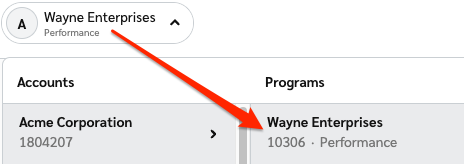
| **Program ID \***                 | <p>In the impact.com platform, select your brand name in the top-left corner. Your <strong>Program ID</strong> is the numerical value under the program name.</p><p><img src="https://files.readme.io/2edc9a646ec0744579c7d80854773dc742f408e01c48224be1fb9756c4d524f0-program_id.png" alt="Program ID screenshot"></p>                                                                                                                                                                         |
| **Event Type ID \***              | In the impact.com platform, navigate to ![](/files/qPLiENtq33ewHc3tmEP4)**\[User profile] → Settings →** [**Event Types**](https://app.impact.com/secure/advertiser/tracking-settings/actiontracker/view-actiontracker-flow.ihtml). Copy the number in parenthesis next to the name of the event type.                                                                                                                                                                                          |
| **Recurring Event Tracker ID \*** | In the impact.com platform, navigate to your [Event Types](https://help.impact.com/en/support/solutions/articles/155000000011-how-do-i-find-my-event-type-id-s-). This event type must be [linked as a child event](https://help.impact.com/en/support/solutions/articles/48001235457-modify-parent-child-event-types) to your first subscription event type. For help with creating and linking event types, [contact support](https://app.impact.com/support/portal.ihtml?createTicket=true). |
| **API Key \***                    | Refer to the *Stripe API Key* you created in [the section above](https://integrations.impact.com/impact-brand/docs/work-in-progress-integrate-with-stripe#generate-a-stripe-api-key).                                                                                                                                                                                                                                                                                                           |

<details open>

<summary>View the required Stripe permissions for this integration...</summary>

1. All core resources: `Read`
2. All Checkout resources: `Read`
3. All Billing Resources: `Read`
4. All Connect resources: `Read`
5. All Orders resources: `Read`
6. All Issuing resources: `None`
7. All reporting resources: `None`
8. All webhook resources: `Write`
9. Stripe CLI permissions: `None`
10. All Payment Links resources: `None`

</details>

If the integration is successful, a listing for your integration should appear in the dashboard.

## Integration creation

When a Stripe integration is first created using the *api\_key* in the creation form, two webhooks will be registered in the Stripe backend using the [Stripe Webhook API](https://stripe.com/docs/api/webhook_endpoints/create) and listed in the following 3 events:

* **invoice.paid:** This event handles subscriptions. Each recurring subscription billing will have a unique invoice ID.
* **charge.refunded:** The request is delayed by one hour before it is sent to impact.com.
* **checkout.session.completed:** This event handles standalone payments.

## Reports

### Subscription events

When an `invoice.paid` event triggers in Stripe, a request is sent to Impact conversions API endpoint with the following data mapping:

<table><thead><tr><th width="230.328125">Impact parameter</th><th>Stripe invoice.paid parameter</th></tr></thead><tbody><tr><td>CampaignId</td><td>Taken from integration settings</td></tr><tr><td>EventTypeId</td><td>Taken from integration settings</td></tr><tr><td>IntegrationSource</td><td><code>impact_stripe_integration</code></td></tr><tr><td>ClickId</td><td><code>invoice.lines.data[0].metadata.impact_click_id</code></td></tr><tr><td>EventDate</td><td><code>timestampToISO(invoice.finalized_at)</code></td></tr><tr><td>OrderId</td><td><code>invoice.id</code></td></tr><tr><td>CustomerId</td><td><code>invoice.customer</code></td></tr><tr><td>CurrencyCode</td><td><code>invoice.currency.toUpperCase()</code></td></tr><tr><td>CustomerEmail</td><td><code>invoice.customer_email</code></td></tr><tr><td>ItemSku1</td><td>Subscription</td></tr><tr><td>ItemCategory</td><td><code>invoice.lines.data[0].description</code></td></tr><tr><td>ItemQuantity1</td><td><code>invoice.lines.data[0].quantity</code></td></tr><tr><td>ItemPrice1</td><td><code>centsToDollars(invoice.amount_paid)</code></td></tr><tr><td>OrderPromoCode</td><td><code>promotion_codes.code</code></td></tr></tbody></table>

### One-time payment events

When a checkout session is completed, the request is made to impact.com with the following data mapping:

<table><thead><tr><th width="230.1875">Impact parameter</th><th>Stripe invoice.paid or checkout.session.completed parameter</th></tr></thead><tbody><tr><td>CampaignId</td><td>Taken from integration settings</td></tr><tr><td>EventTypeId</td><td>Taken from integration settings</td></tr><tr><td>IntegrationSource</td><td>impact_stripe_integration</td></tr><tr><td>ClickId</td><td>invoice.lines.data[0].metadata.impact_click_id</td></tr><tr><td>EventDate</td><td>timestampToISO(invoice.finalized_at)</td></tr><tr><td>OrderId</td><td>checkout.id</td></tr><tr><td>CustomerId</td><td>checkout.customer</td></tr><tr><td>CurrencyCode</td><td>invoice.currency.toUpperCase()</td></tr><tr><td>CustomerEmail</td><td>invoice.customer_email</td></tr><tr><td>ItemSku1</td><td>Subscription</td></tr><tr><td>ItemCategory<code>{i}</code></td><td>line_items[i].price.product.id</td></tr><tr><td>ItemQuantity<code>{i}</code></td><td>line_items[i].price.product.name</td></tr><tr><td>ItemPrice1</td><td>centsToDollars(line_item.price.unit_amount)</td></tr><tr><td>OrderPromoCode</td><td>order.total_details.breakdown.discounts[0].discount.promotion_code</td></tr></tbody></table>

### Refunds

When a `charge.refunded` event triggers in Stripe, a request is sent to Impact and will process an hour later to ensure the initial conversion is fully processed, with the following data mapping:

| Impact parameter | Stripe charge.refund parameter                                             |
| ---------------- | -------------------------------------------------------------------------- |
| EventTypeId      | Taken from integration settings                                            |
| Reason           | `OTHER`                                                                    |
| ItemSku          | Subscription                                                               |
| ItemQuantity     | 1                                                                          |
| ItemSubtotal     | `(centsToDollars(refund.amount) - centsToDollars(refund.amount_refunded))` |
| OrderId          | `refund.invoice`                                                           |


---

# Agent Instructions: Querying This Documentation

If you need additional information that is not directly available in this page, you can query the documentation dynamically by asking a question.

Perform an HTTP GET request on the current page URL with the `ask` query parameter:

```
GET https://integrations.impact.com/integration-guides/for-brands/plugin-integrations/subscriptions-and-payments/integrate-with-stripe.md?ask=<question>
```

The question should be specific, self-contained, and written in natural language.
The response will contain a direct answer to the question and relevant excerpts and sources from the documentation.

Use this mechanism when the answer is not explicitly present in the current page, you need clarification or additional context, or you want to retrieve related documentation sections.