> For the complete documentation index, see [llms.txt](https://integrations.impact.com/llms.txt). Markdown versions of documentation pages are available by appending `.md` to page URLs; this page is available as [Markdown](https://integrations.impact.com/integration-guides/for-brands/plugin-integrations/subscriptions-and-payments/integrate-with-stripe/integrate-with-stripe-for-advocate.md).
# Integrate with Stripe for Advocate
Stripe is a software service provider for end-to-end billing, invoicing, payments, and subscription management. Advocate specifically integrates with Stripe’s invoicing and payment processing system. You can configure a credit-based reward that will automatically get pushed into Stripe and applied to the advocate’s next invoice.
{% hint style="warning" %}
**Important:** Advocate's Stripe integration is set up differently from impact.com's affiliate Stripe integration and is currently incompatible. Refer to [Integrate with Stripe](https://integrations.impact.com/integration-guides/for-brands/plugin-integrations/subscriptions-and-payments/integrate-with-stripe) if you want to integrate with the affiliate impact.com Stripe integration.
{% endhint %}
## Understand the integration limitations
Advocate's Stripe integration only supports [custom reward units](https://help.impact.com/brand/what-would-you-like-to-learn-about/advocate-program/advocate-rewards/create-a-reward-unit).
* Credit, Cash, Discount, and Fuel Tank are not supported.
* Multi-currency support needs to be turned on for the reward unit.
## How it works
* In impact.com, you'll configure a custom reward unit.
* When a user earns a reward using the custom unit, the system automatically pushes the credit to Stripe.
* The credit is added to the user’s account in Stripe.
* Once in their account, Stripe will automatically apply the credit as a discount to their next invoice.
## Integration setup
### Connect your Advocate program to your Stripe account
The first step is to grant your impact.com account access to your Stripe account's live and test modes by using *Stripe Connect*.
1. In impact.com, from the top navigation bar, select  **\[User profile] →** [**Settings**](https://app.impact.com/secure/advertiser/account-settings-flow.ihtml).
2. In the left column below *Advocate Settings*, select **Integrations**.
3. Scroll down to *Stripe Integration*, select :plus: **\[plus]** to expand the section and then select **Enable Stripe**.
4. Select **Connect to Stripe**, which will open a pop-up window prompting you to log in with your Stripe credentials. This will authorize Advocate to add credit to your customer accounts in Stripe.
### Configure custom Stripe reward units
The Stripe Integration supports the fulfillment of alternative reward units as long as it is specified in the Stripe Configuration and a valid currency code is appended.
1. In impact.com, from the top navigation bar, select  **\[User profile] →** [**Settings**](https://app.impact.com/secure/advertiser/account-settings-flow.ihtml).
2. In the left column below *Advocate Settings*, select **Integrations**.
3. Navigate to the *Integrations* page.
4. On the *Stripe Integration* card, expand the card and select **Custom** from the drop-down menu.
5. In the empty text box, add a `Reward Unit/Currency` in this format, e.g., `STRIPE/USD`.
6. Select **Save**.
### Connect Advocate users
For a customer to have their rewards fulfilled by Stripe, you must link their Advocate User Account with their Stripe Customer ID (e.g. `cus_FpRWZEB4b77zAI`). Refer to Stripe's documentation on [managing customers](https://docs.stripe.com/billing/customer) via the dashboard or API or follow the steps below.
#### Create a customer in Stripe
1. Navigate to the *Stripe Dashboard*, and in the left navigation menu, select **Customers**.
2. In the upper-right corner, select **Add customer**
3. On the *Create customer* window, fill in the customer information.
4. Select **Add customer**.
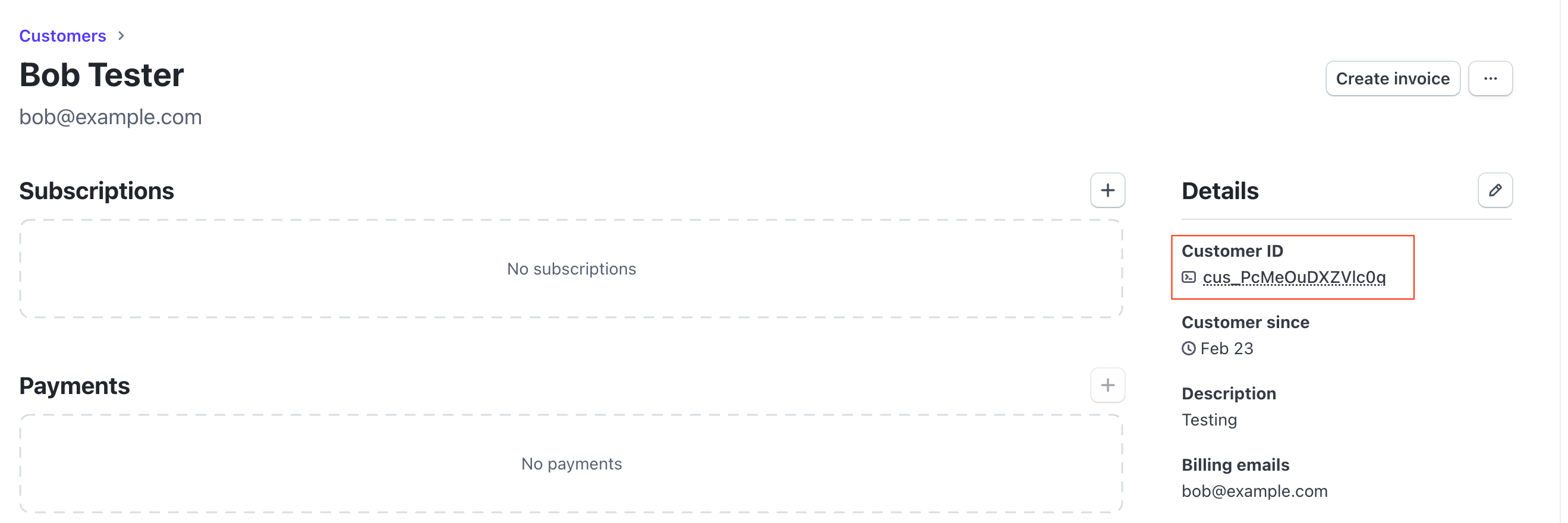
5. Once the customer is created, select the customer's name.
6. Below the *Details* section, copy the **Customer ID**.
#### Add a user in impact.com
**1. Add a Stripe customer ID custom field to the participant profile**
You can include custom fields when importing new users or updating existing users in bulk. If the participant does not have a `stripeCustomerId`, the integration will not send the reward to Stripe. Refer to [Import Advocate Participants in Bulk](https://help.impact.com/brand/what-would-you-like-to-learn-about/advocate-program/manage-advocate-participants/import-advocate-participants-in-bulk) for more information.
**2. Add the Stripe customer ID to the participant**
After adding `customFields.stripeCustomerId` to the participant details page, add the Stripe customer ID to the participant. Refer to [User Upsert](https://integrations.impact.com/brand-api-reference/advocate-api-reference-v1/reference/user-overview/user) to use the API method.
1. From the left navigation menu, select  **Engage → Participants**.
2. Select the participant's name for which you want to add the Stripe customer ID.
3. On the *Participant Details* card, select **Edit**.
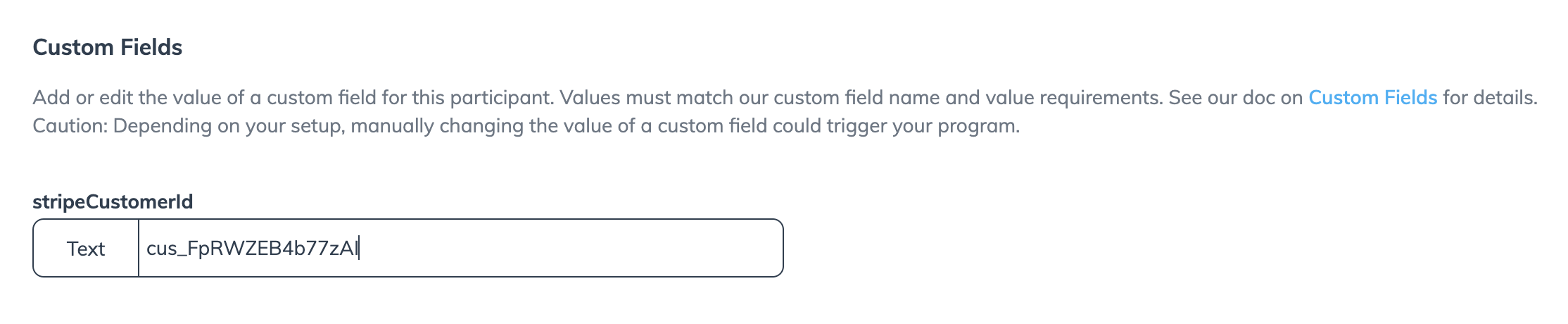
4. Scroll down to the *Custom Fields* section and in the `stripeCustomerId` text box add the Stripe customer ID.
5. Select **Save**.
---
# Agent Instructions
This documentation is published with GitBook. GitBook is the documentation platform designed so that both humans and AI agents can read, navigate, and reason over technical content effectively. Learn more at gitbook.com.
## Querying This Documentation
If you need additional information that is not directly available in this page, you can query the documentation by asking a question.
Perform an HTTP GET request on the following URL with the `ask` and `goal` query parameters:
```
GET https://integrations.impact.com/integration-guides/for-brands/plugin-integrations/subscriptions-and-payments/integrate-with-stripe/integrate-with-stripe-for-advocate.md?ask=&goal=
```
`ask` is the immediate question: it should be specific, self-contained, and written in natural language.
`goal` is what the user is ultimately trying to achieve, the reason they need the answer. Sharing it helps GitBook give you a better, more relevant answer. A goal is most helpful when it describes the outcome the user wants rather than restating the question. For example, with `ask=how do I create an API token`, a goal like `automate deployments from our CI pipeline` lets GitBook tailor the answer to that use case.
The response will contain a direct answer to the question and relevant excerpts and sources from the documentation.
Use this mechanism when the answer is not explicitly present in the current page, you need clarification or additional context, or you want to retrieve related documentation sections.